

Sending Quotes to Customers
Last updated: 8 Feb 2026
Estimated time to complete: 4 min.
Applies to: Air Conditioning Engineers
Summary
Learn how to email quotes, share PDFs, and track whether your customer has opened or clicked on them.
Once a quote is ready, you need to get it in front of your customer. Quotestack gives you multiple ways to share quotes and tracks engagement so you know exactly when a customer has seen your proposal.
Emailing a Quote
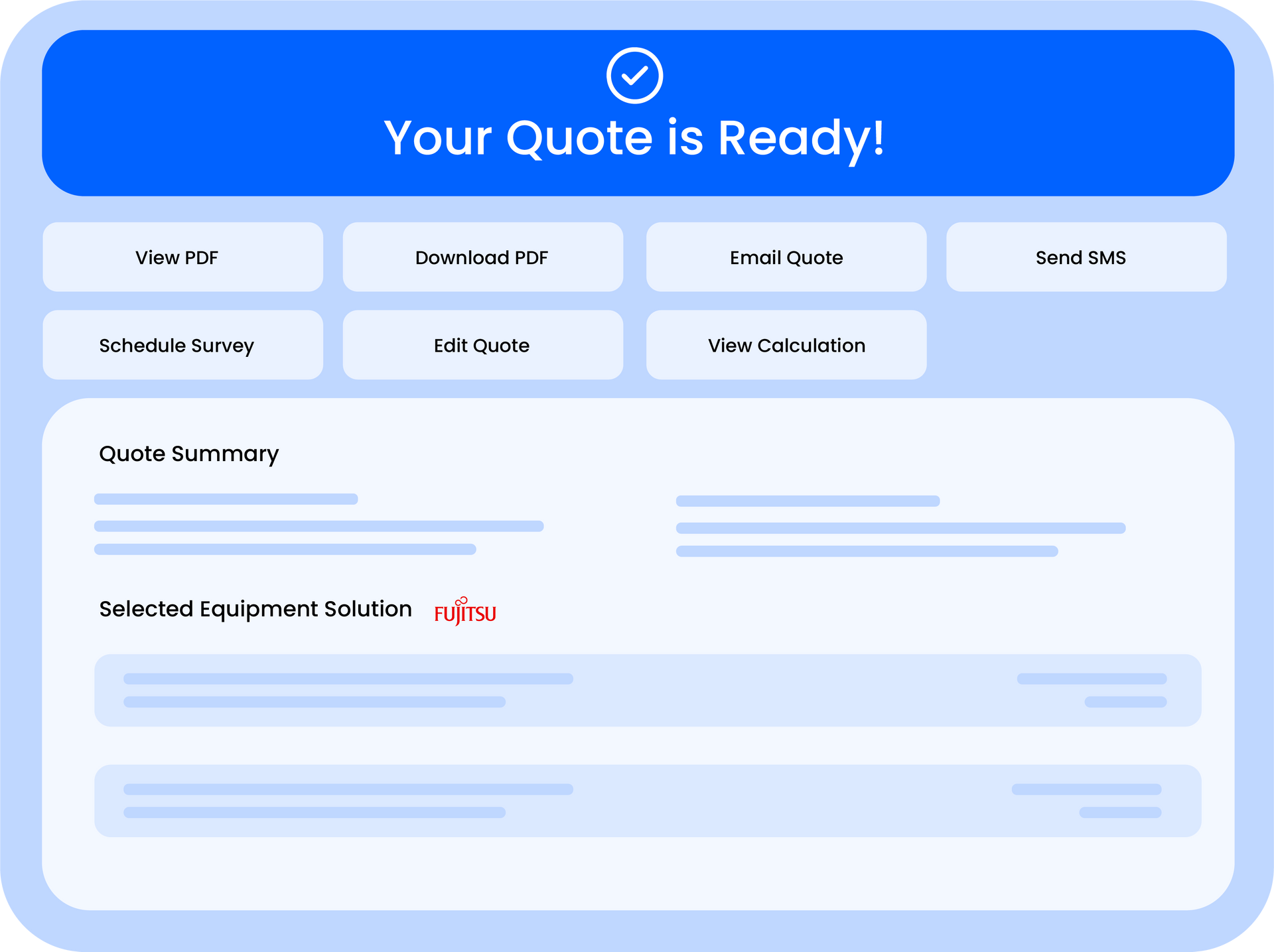
The quickest way to send a quote is directly from the Quote Summary page. The built-in email feature sends a branded email to the customer with a link to view the quote online and a PDF attachment.
Step 1. Open the Quote Summary
Navigate to the quote you want to send from the All Quotes page, Dashboard pipeline, or directly after submitting a new quote.
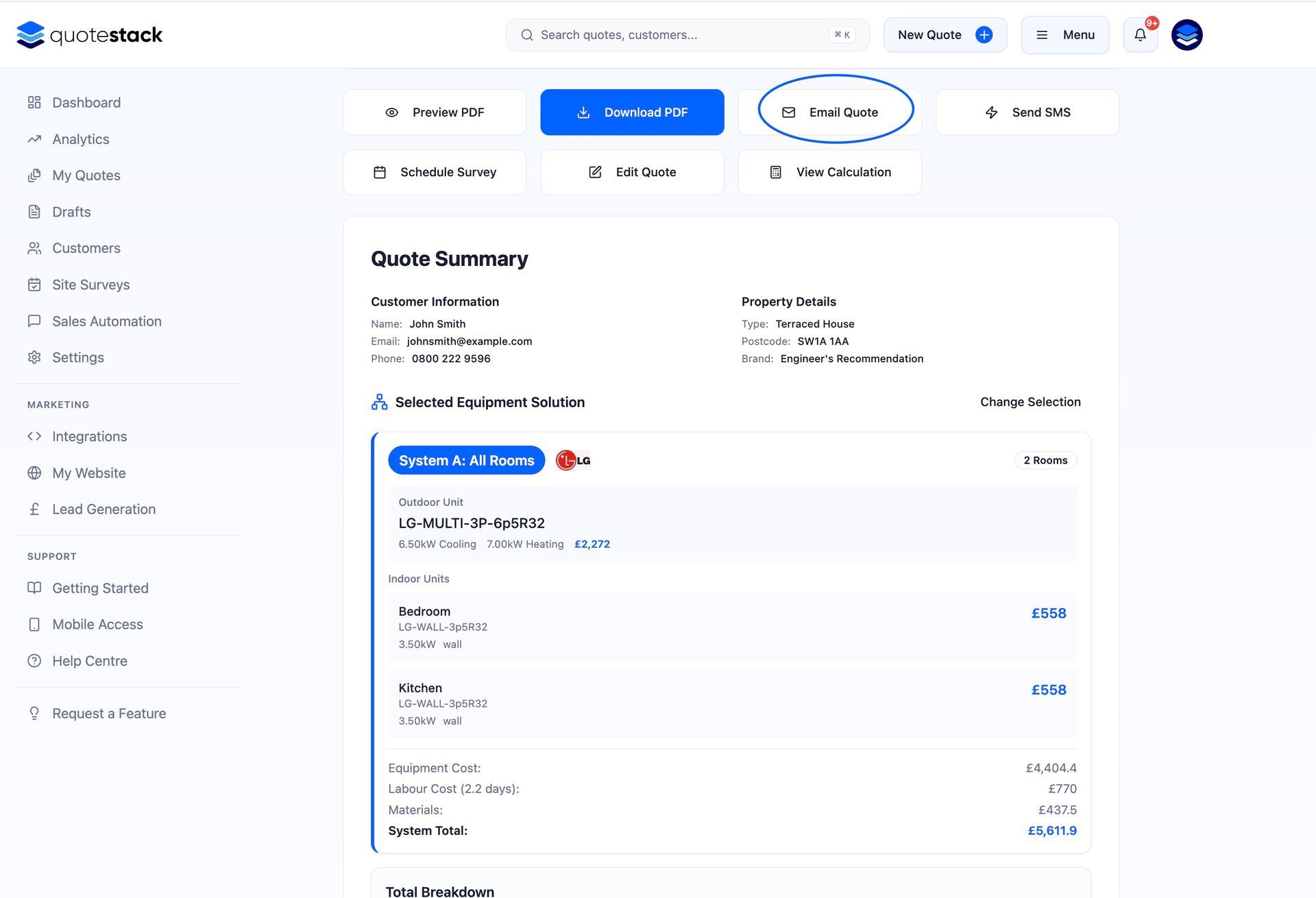
Step 2. Click Send Quote
Click the "Send Quote" or email button on the Quote Summary page. The system sends a professional, branded email to the customer's email address with a link to view the quote and a PDF attachment.
Note
The email uses your configured "From" name and email address from Settings, so the customer sees your company name as the sender.
Step 3. Quote Status Updates Automatically
Once sent, the quote status changes to "Sent" automatically. You don't need to update it manually, the platform tracks this for you.
Downloading and Sharing a PDF
If you prefer to send the quote yourself via WhatsApp, a personal email, or printed on paper, you can download the branded PDF directly.
Step 4. Download the PDF
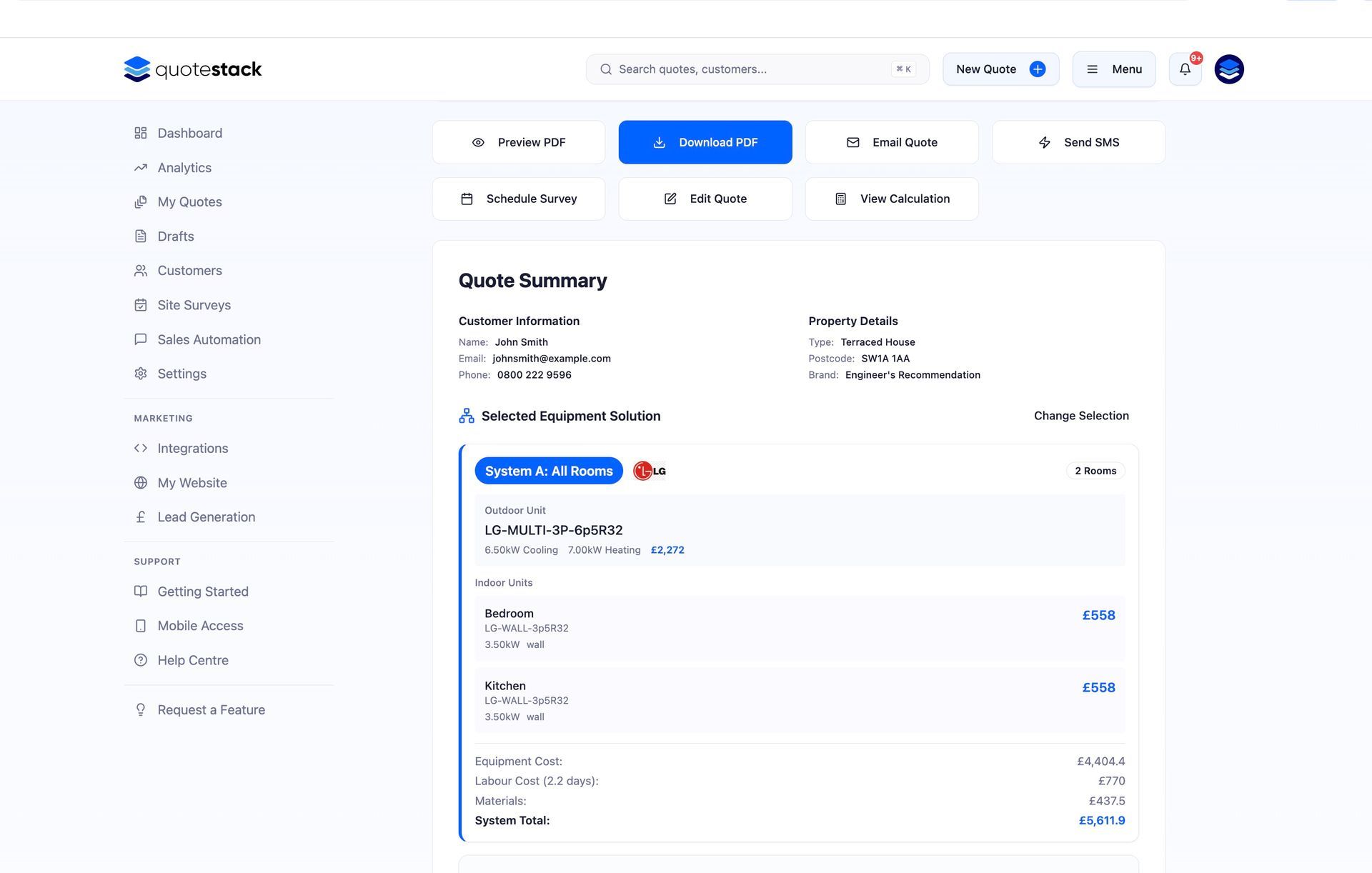
On the Quote Summary page, click "Download PDF". The system generates a branded PDF with your logo, colours, full cost breakdown, installation includes, and important notes. Save it and share it however you like.
Warning
If you share the PDF manually (outside the platform), the quote status won't update automatically. Remember to change the status to Sent so your pipeline stays accurate.
Tracking Customer Engagement
When you send a quote using the built-in email tools, Quotestack tracks customer interactions automatically:
- Email delivered - confirms the email reached the customer's inbox
- Email opened - tracked when the customer opens the email
- Quote viewed - triggered when the customer clicks the link to view the quote
- Link clicked - records when the customer interacts with links in the email
These events update the quote status and appear in your notifications, giving you real-time visibility into customer engagement without needing to follow up to ask "did you get my email?"
Note
Check the Notifications bell icon in the top bar for real-time alerts when a customer opens or views your quote — this is the perfect time to follow up with a call.
Follow-Up Emails
If a customer hasn't responded after a few days, you can send follow-up emails. Quotestack supports both manual and automated follow-ups:
- Manual follow-up - send a personalised chase email from the Quote Summary page at any time
- Automated sequences - configure follow-up email templates in Settings > Automation that trigger automatically based on time and quote status
Automated follow-ups are configured with day triggers (e.g. 3 days after sending, 7 days after sending) and only fire for quotes in the Sent or Viewed stages. Quotes that have been Accepted, Rejected, or Expired are excluded automatically.
Customer Communication History
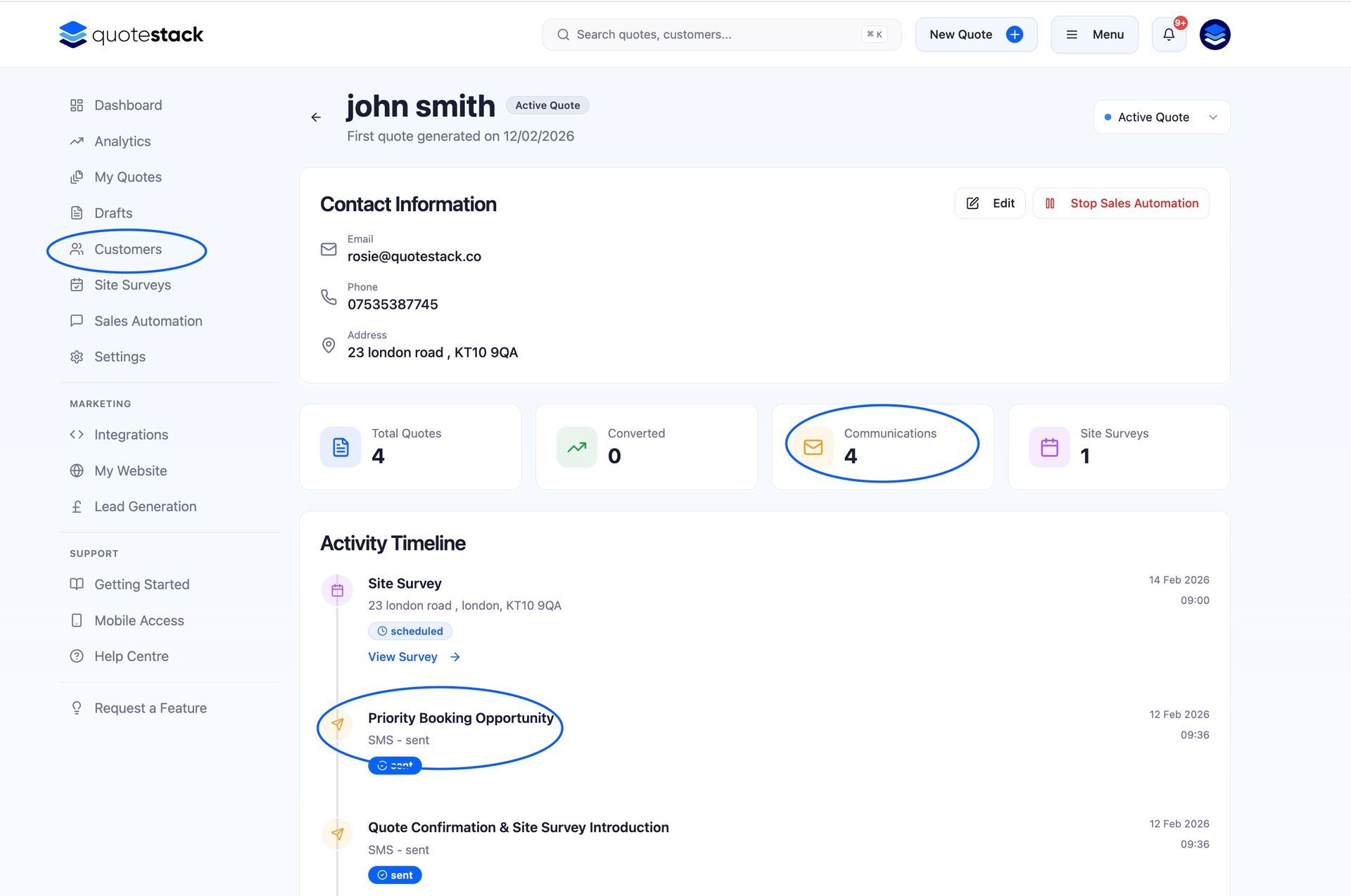
Every email sent, opened, and clicked is logged against the customer record. You can view the full communication history from the Customer Profile page, giving you a complete timeline of interactions for each customer.
Note
Use the communication history to avoid double-chasing. If the log shows a customer viewed the quote yesterday, a friendly call might be more effective than another email.
Did this answer your question?
😃
😐
😞
Great! We’re glad we could help.
Not quite what you needed? Discover more articles here
If you'd like you can ask our team