

Adding Team Members
Last updated: Feb 2026
Estimated time to complete: 4 min.
Applies to: Air Conditioning Engineers
Summary
Learn how to invite team members to your organisation, assign roles, and manage their access to the platform.
Quotestack supports multi-user teams so you can collaborate with colleagues, engineers, and office staff. Each team member gets their own login and can be assigned a role that controls what they can see and do.
Understanding Roles
Every team member is assigned one of three roles. Each role has different permissions:
- Owner - full access to everything including billing, team management, and all settings. Every organisation has at least one owner
- Admin - can manage quotes, customers, equipment, and settings. Can invite and manage team members. Cannot access billing or delete the organisation
- Member - can create and view quotes, manage customers, and use day-to-day features. Cannot change settings or manage team members
Inviting a Team Member
Step 1. Go to Team Settings
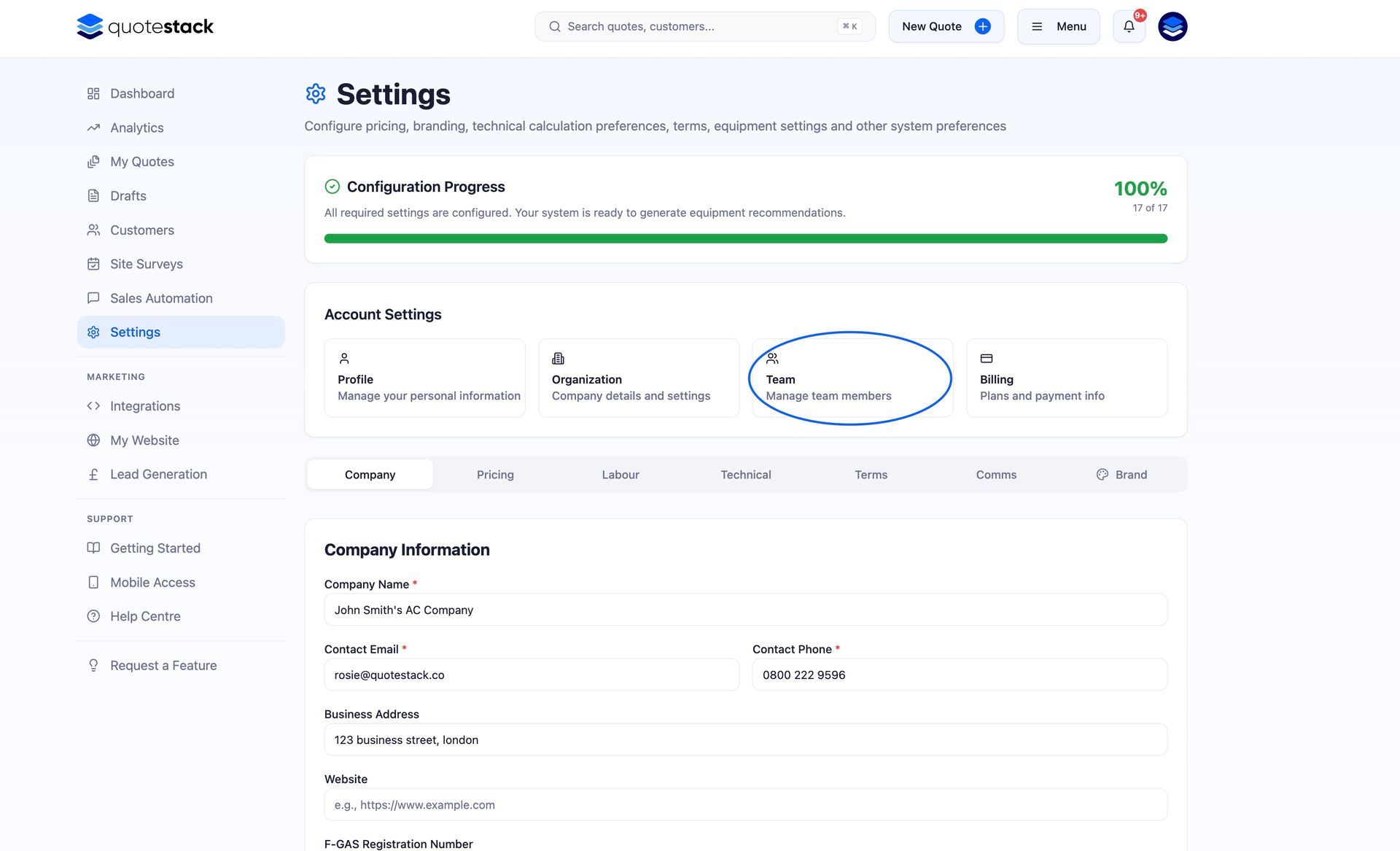
Navigate to Account > Team from the sidebar. This page shows all current team members and their roles.
Step 2. Click Invite Member
Click the "Invite Member" button. Enter the new team member's email address and select the role you want to assign them (Admin or Member).
Step 3. Send the Invitation
Click Send. The new team member receives an email invitation with a link to set up their account and join your organisation.
Step 4. Team Member Accepts
The invited person clicks the link in the email, creates their account (or logs in if they already have one), and is automatically added to your organisation with the assigned role.
Warning
Only Owners and Admins can invite new team members. If you don't see the Invite button, check your role with your account owner.
Managing Existing Team Members
From the Team page, you can manage your existing team members:
- Change role - click on a team member's role to change it (Owner and Admin only)
- Remove member - remove a team member from the organisation. They lose access immediately but their account isn't deleted
- Re-invite - if someone's invitation expired, you can send a new one
Important
Removing a team member is immediate and cannot be undone. They will lose access to all organisation data, quotes, and customers. You can re-invite them later, but they'll start fresh.
What Team Members Can See
All team members within an organisation share the same data — quotes, customers, equipment catalogue, and settings are visible to everyone. The role determines what actions they can take, not what data they can see.
- All roles - can view quotes, customers, dashboard, and analytics
- Admin and Owner - can edit settings, manage equipment, configure automation, and invite team members
- Owner only - can manage billing, subscription, and delete the organisation
Note
If you need more granular permissions (e.g. restricting a member to only see their own quotes), let us know via the Request a Feature page — we're always looking for feedback.
Best Practices
- Keep the number of Owners small, ideally one or two people who manage billing and high-level settings
- Use Admin for office managers and senior staff who configure the platform day-to-day
- Use Member for engineers and field staff who primarily create and manage quotes
- Review team members regularly - remove anyone who no longer needs access
Did this answer your question?
😃
😐
😞
Great! We’re glad we could help.
Not quite what you needed? Discover more articles here
If you'd like you can ask our team