

Managing User Roles
Last updated: Feb 2026
Estimated time to complete: 5 min.
Applies to: Air Conditioning Engineers
Summary
How to change team member roles, transfer organisation ownership, and review who has access to your account.
As your team changes, you'll need to update roles, transfer responsibilities, and occasionally review who has access. This guide covers all the role management tasks available to Owners and Admins.
Step-by-Step Guide
Changing a Team Members Role
Step 1. Go to the Team Page
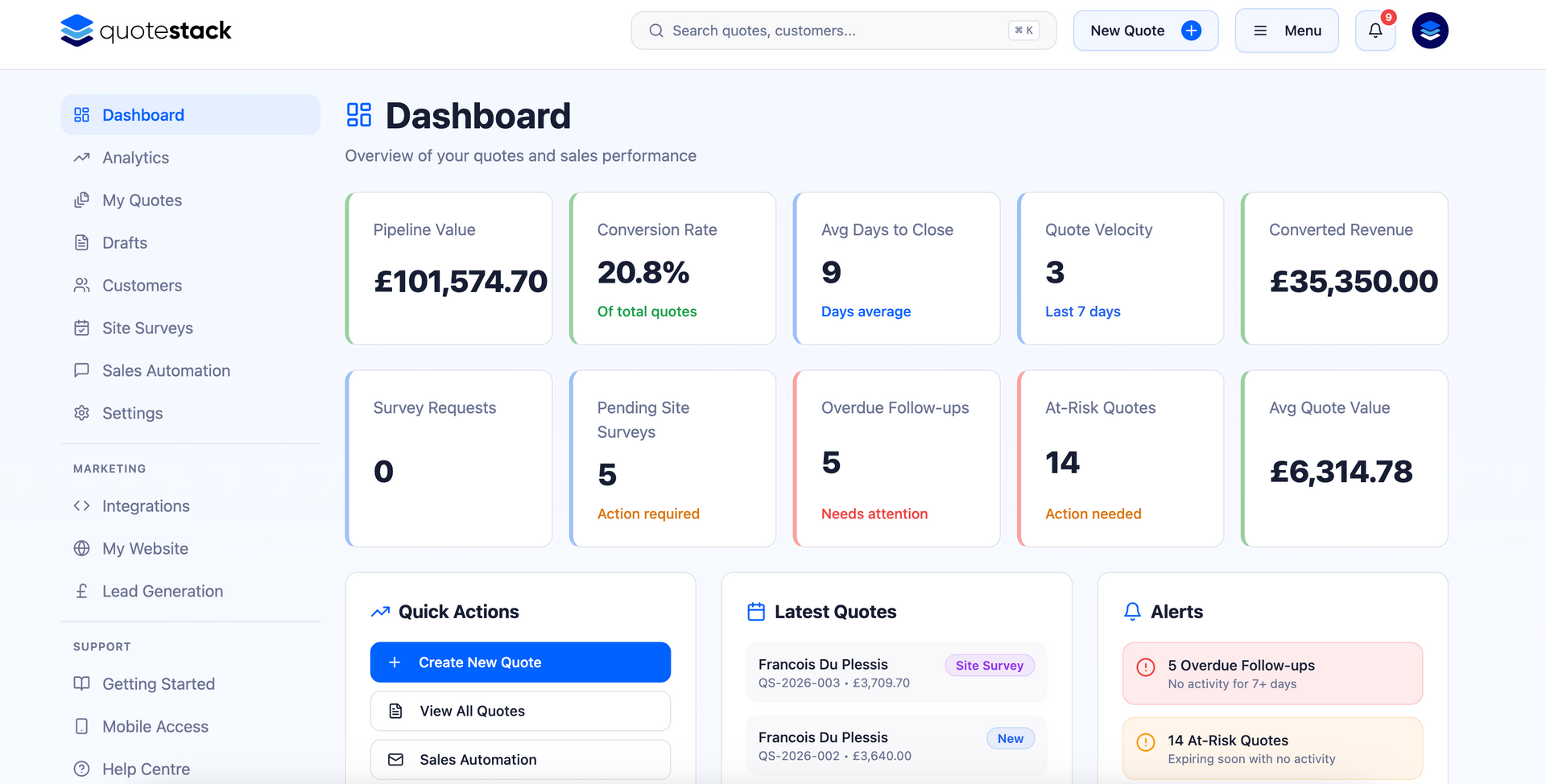
Navigate to Account > Team from the sidebar. You'll see a list of all team members with their current roles.
Step 2. Select the Member
Find the team member whose role you want to change. Click on their role badge or the edit option next to their name.
Step 3.
Choose the New Role
Select the new role from the dropdown: Owner, Admin, or Member. The change takes effect immediately, the team member's permissions update on their next page load.
Note
Role changes are instant but non-disruptive. The team member won't be logged out — they'll simply see updated options the next time they navigate to a new page.
Promoting to Admin
Promoting a Member to Admin gives them access to settings, equipment management, team invitations, and automation configuration. This is useful when:
- A team member takes on office management responsibilities
- You need someone to handle equipment catalogue updates
- You want a backup person who can manage settings while you're away
- A senior estimator needs to configure pricing or templates
Demoting to Member
If someone no longer needs Admin-level access, you can change their role back to Member. They'll retain access to quotes, customers, and the dashboard but will lose the ability to change settings or manage the team.
Warning
Before demoting an Admin, make sure at least one other Owner or Admin remains who can manage settings and team members. An organisation with only Members would have no one able to invite new users or update configuration.
Transferring Ownership
There are situations where you may need to transfer ownership of the organisation to someone else. For example, if the business changes hands, you're leaving the company, or a different director needs to manage billing.
Step 4. Promote the New Owner
Go to Account > Team, find the person you want to make the new Owner, and change their role to Owner. An organisation can have multiple Owners.
Step 5.
Demote Yourself (Optional)
If you no longer need Owner-level access, the new Owner can change your role to Admin or Member. Alternatively, you can remove yourself from the organisation entirely.
Important
An organisation must always have at least one Owner. You cannot demote or remove the last remaining Owner. Transfer ownership to another person first before stepping down.
Reviewing Team Access
It's good practice to regularly review who has access to your organisation. The Team page shows:
- Each team member's name and email address
- Their current role (Owner, Admin, or Member)
- When they were added to the organisation
Use this information to identify team members who may no longer need access, for example, former employees, contractors whose project has ended, or temporary staff.
Removing a Team Member
If someone leaves the business or no longer needs access to Quotestack:
Step 6. Remove from Organisation
Go to Account > Team, find the team member, and click Remove. They immediately lose access to all organisation data. Their personal account is not deleted, they simply can't see your organisation's quotes, customers, or settings any more.
Note
Quotes created by a removed team member are not deleted. They remain in your organisation and can be managed by any remaining team member.
Security Best Practices
- Review team access quarterly - remove anyone who no longer needs it
- Limit the number of Owners - one or two is ideal for most businesses
- Use the Member role by default - only promote to Admin when someone genuinely needs the extra permissions
- Remove leavers promptly - when someone leaves the business, remove their access the same day
- Don't share login credentials - each team member should have their own account with their own email address
Did this answer your question?
😃
😐
😞
Great! We’re glad we could help.
Not quite what you needed? Discover more articles here
If you'd like you can ask our team