

Configuring Email Notifications
Last updated: Feb 2026
Estimated time to complete: 4 min.
Applies to: Air Conditioning Engineers
Summary
Control which email notifications you receive and where they're sent — from quote alerts to follow-up tracking.
Quotestack sends email notifications to keep you informed about important events - new quotes from the widget, customer engagement, follow-up activity, and more. You can configure exactly which notifications you receive and where they're delivered.
Where to Find Notifications
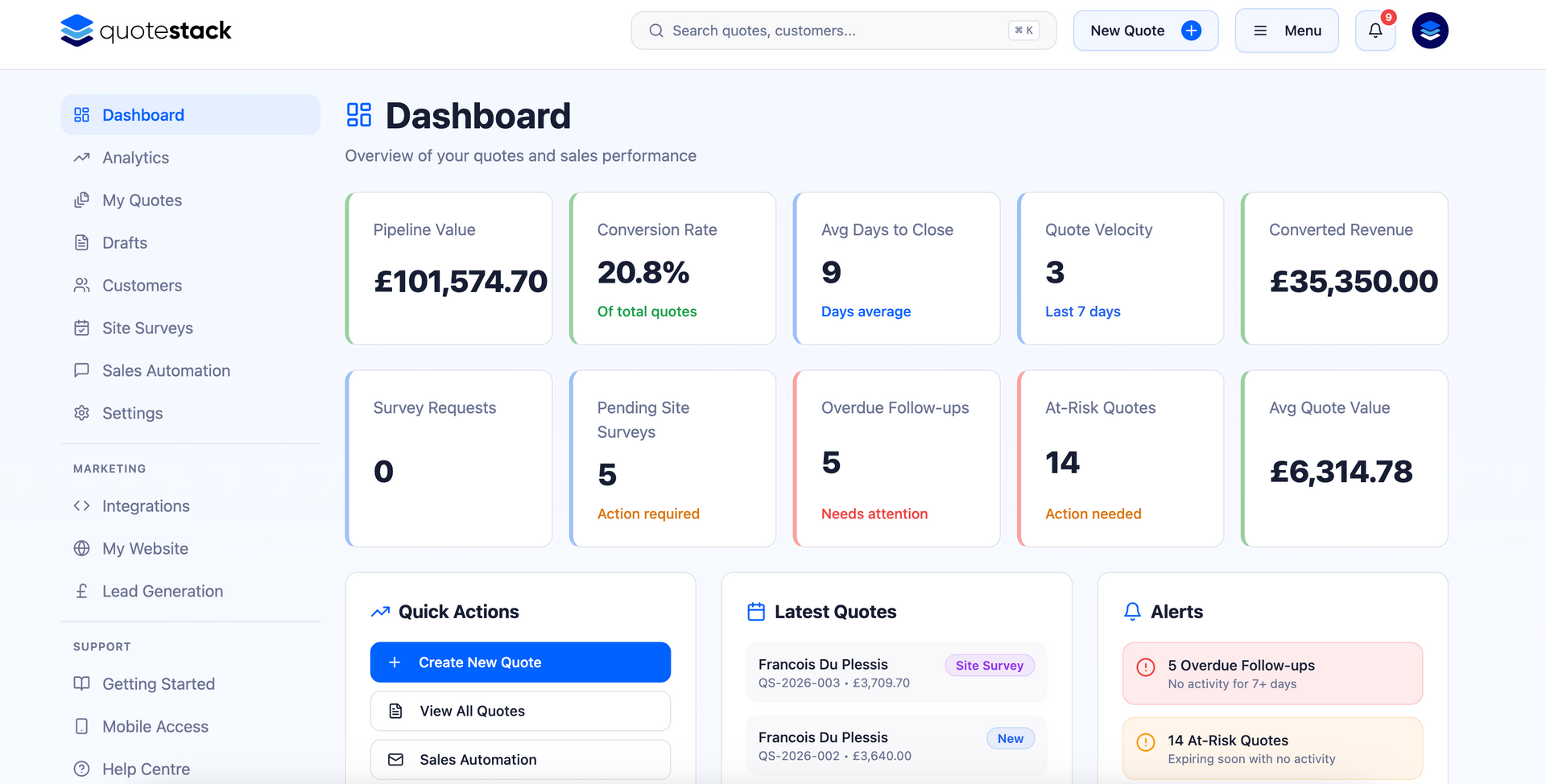
Go to Settings from the sidebar. The notification preferences section lets you toggle individual notification types on or off and set the email addresses where alerts are sent.
Available Notifications
You can enable or disable each notification type independently:
Quote Notifications
- Platform quote created - triggered when you or a team member creates a new quote through the platform
- Widget quote created - triggered when a customer submits a quote request through your website widget
- Quote opened - notifies you when a customer opens a quote email
- Quote link clicked - triggered when a customer clicks the link to view the full quote
- Quote expired - alerts you when a quote passes its expiry date without being accepted
Note
Widget quote notifications are especially useful — they alert you instantly when a potential customer submits a request through your website, so you can respond quickly.
Follow-Up Notifications
- Follow-up email sent (BCC) - receive a copy of every automated follow-up email sent to customers
- Follow-up email opened - notifies you when a customer opens a follow-up email
- Follow-up email clicked - triggered when a customer clicks a link in a follow-up email
Customer Notifications
- Customer reply - alerts you when a customer responds to a quote or follow-up email
- Unsubscribe request - notifies you when a customer opts out of further communications
Warning
If a customer unsubscribes, automated follow-ups stop immediately. You'll receive a notification so you can follow up manually by phone if appropriate.
Setting Notification Email Addresses
By default, notifications are sent to the account owner's email address. You can add additional email addresses so that multiple team members receive alerts. For example, sending widget quote notifications to both the office manager and the lead estimator.
Step 1. Add Notification Emails
In the notification settings, find the "Notification Emails" field. Add one or more email addresses. All listed addresses will receive the enabled notifications.
Note
Use a shared team email address (e.g. quotes@yourcompany.com) to ensure notifications reach the right people even when individuals are on holiday.
Email Sender Settings
Separate from notifications, you can also configure how outgoing emails (quotes, follow-ups) appear to your customers:
- From name - the name customers see as the sender (e.g. your company name)
- From email - the reply-to address for customer responses
- Email signature - optional HTML signature appended to outgoing emails
Step 2. Configure Sender Settings
Go to Settings and find the Email section. Set your "From" name and email address. These apply to all outgoing emails - quote deliveries, follow-ups, and survey invitations.
Warning
Make sure your "From" email is a real address you monitor. Customer replies go directly to this address, and bounced emails may be flagged if the address is invalid.
SMS Notifications
Quotestack also supports SMS notifications for certain events. If SMS is enabled, you can configure the sender name and number that appear on outgoing text messages. SMS settings are found alongside email configuration in Settings.
Take a few minutes to configure your notifications when you first set up Quotestack. Getting the right alerts to the right people means faster response times and fewer missed opportunities.
Did this answer your question?
😃
😐
😞
Great! We’re glad we could help.
Not quite what you needed? Discover more articles here
If you'd like you can ask our team