

Understanding the Dashboard
Last updated: 8 Feb 2026
Estimated time to complete: 4 min.
Applies to: Air Conditioning Engineers
Summary
A tour of the Dashboard - your central hub for tracking quotes, monitoring performance, and managing your daily workflow.
The Dashboard is the first thing you see when you log in. It gives you a real-time snapshot of your quoting pipeline, recent activity, and key performance metrics - all in one place.
Pipeline Overview
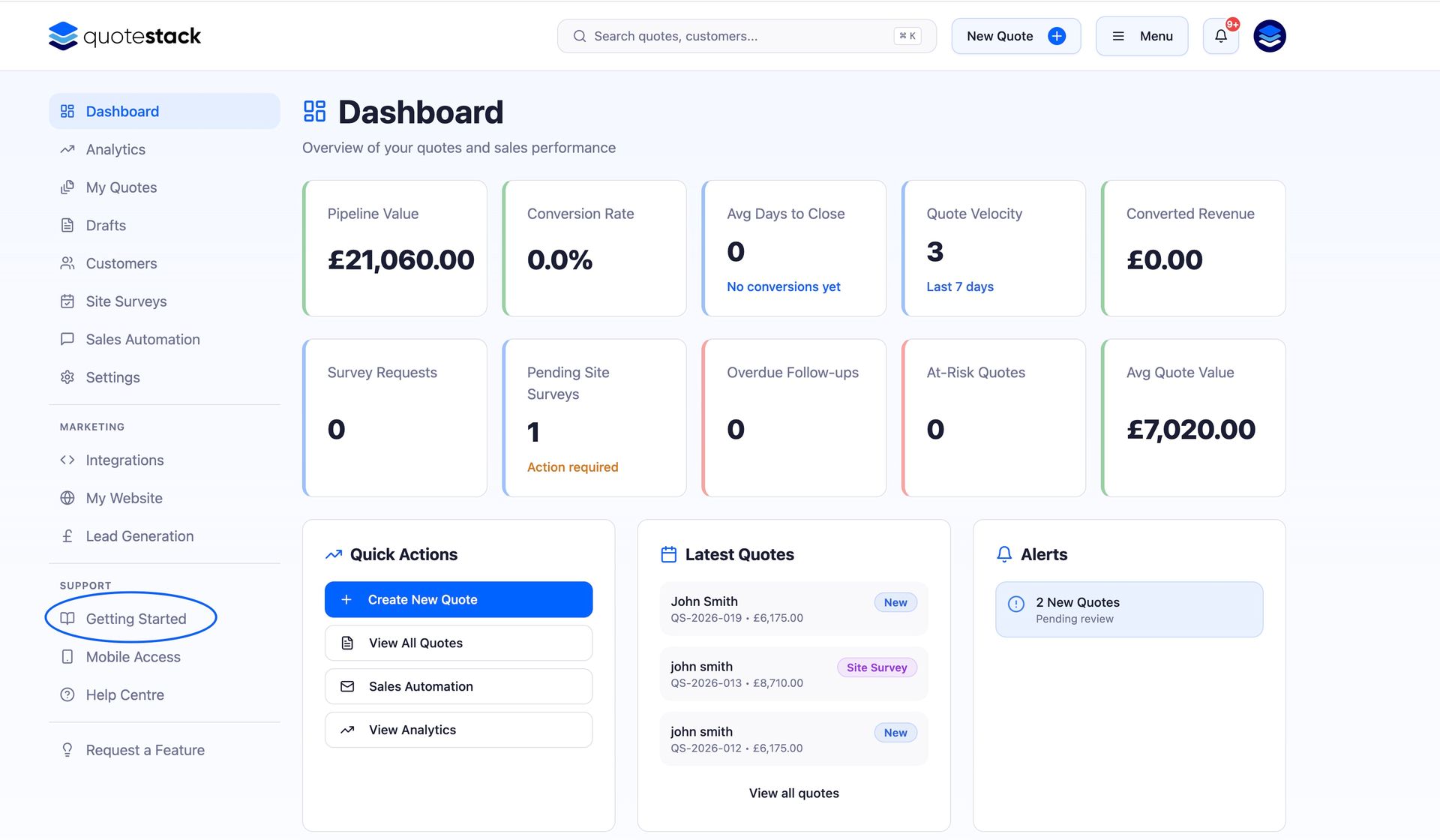
At the top of the Dashboard, the pipeline view shows your quotes organised by status: Draft, Sent, Viewed, Accepted, and Rejected. Each column displays a count and total value, so you can see at a glance how much revenue is in each stage.
Note
Click on any quote card in the pipeline to jump straight to its Quote Summary page.
Stat Cards
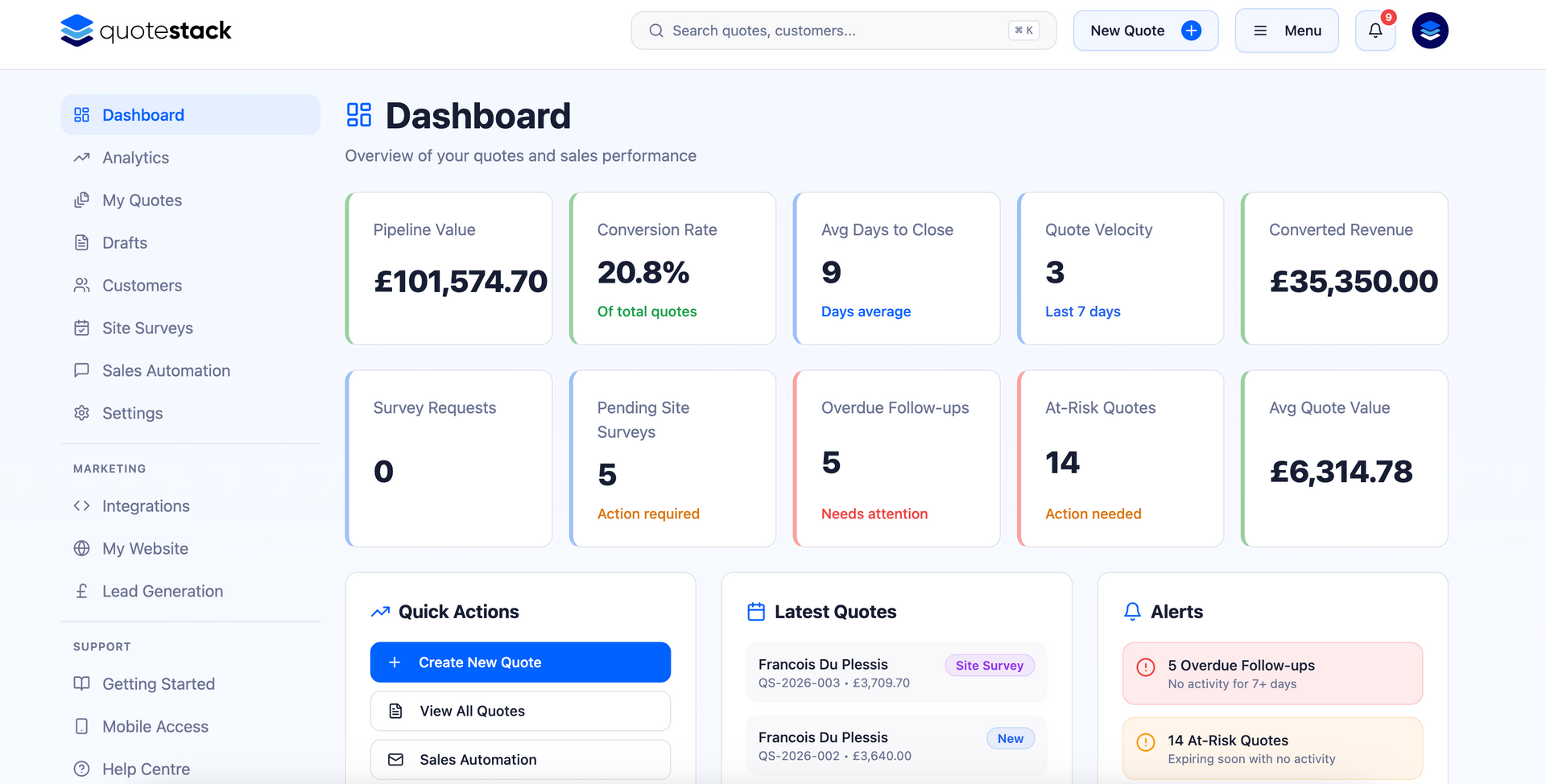
Below the pipeline, the stat cards give you quick metrics including total quotes created, total revenue, conversion rate, and average quote value. These update in real time as you create and manage quotes.
- Total Quotes - the number of quotes created across all statuses
- Total Revenue - the combined value of accepted quotes
- Conversion Rate - the percentage of sent quotes that were accepted
- Average Quote Value - the mean value across all your quotes
Recent Quotes
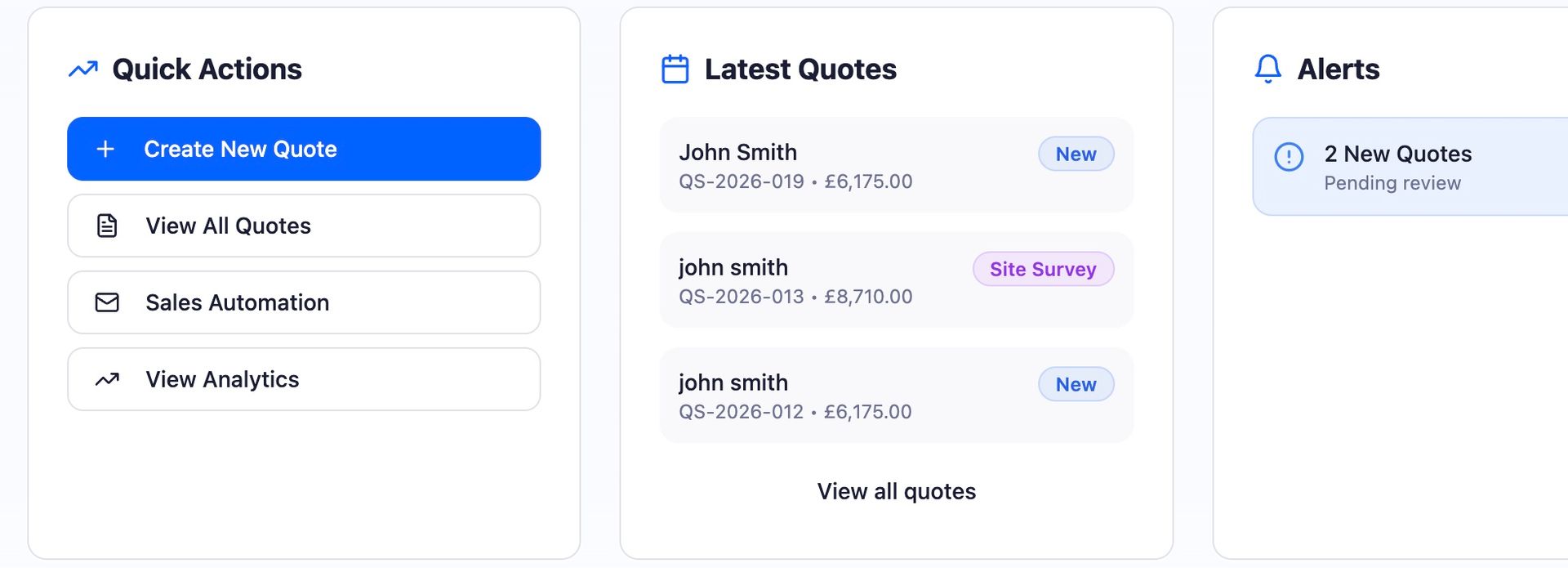
The Recent Quotes section lists your most recently created or updated quotes. Each row shows the customer name, quote number, status, total value, and date. Use this to quickly pick up where you left off.
Quick Actions
The Dashboard includes quick-action buttons to speed up common tasks:
- New Quote - opens the quote builder to start a fresh quote
- View All Quotes - takes you to the full quotes list with search and filtering
- Follow-Ups - shows quotes that are due for follow-up communications
Getting Started Checklist
If you're new to Quotestack, the Getting Started checklist appears on the Dashboard. It guides you through the essential setup steps - company profile, equipment catalogue, pricing, and creating your first quote. Once all steps are complete, the checklist disappears automatically.
Note
You can always re-access the setup guide from Settings if you need to revisit any configuration.
Notifications
The bell icon in the top navigation shows your unread notifications. These include alerts for new widget submissions, quote status changes, customer replies, and follow-up reminders. Click the bell to see the full list and mark items as read.
Warning
Make sure your notification preferences are configured in Settings so you receive alerts for the events that matter most to your workflow
The Dashboard is designed to be your daily starting point. Check it each morning to see what needs attention, track your pipeline progress, and jump into action with a single click.
Did this answer your question?
😃
😐
😞
Great! We’re glad we could help.
Not quite what you needed? Discover more articles here
If you'd like you can ask our team