

Help Article Title
Last updated: 8Feb 2026
Estimated time to complete: 5 min.
Applies to: Air Conditioning Engineers
Summary
Solutions for common PDF problems including downloads not working, missing logos, layout issues, and formatting errors.
If your quote PDFs aren't downloading, displaying incorrectly, or missing content, work through the troubleshooting steps below to identify and fix the issue.
PDF Won't Download
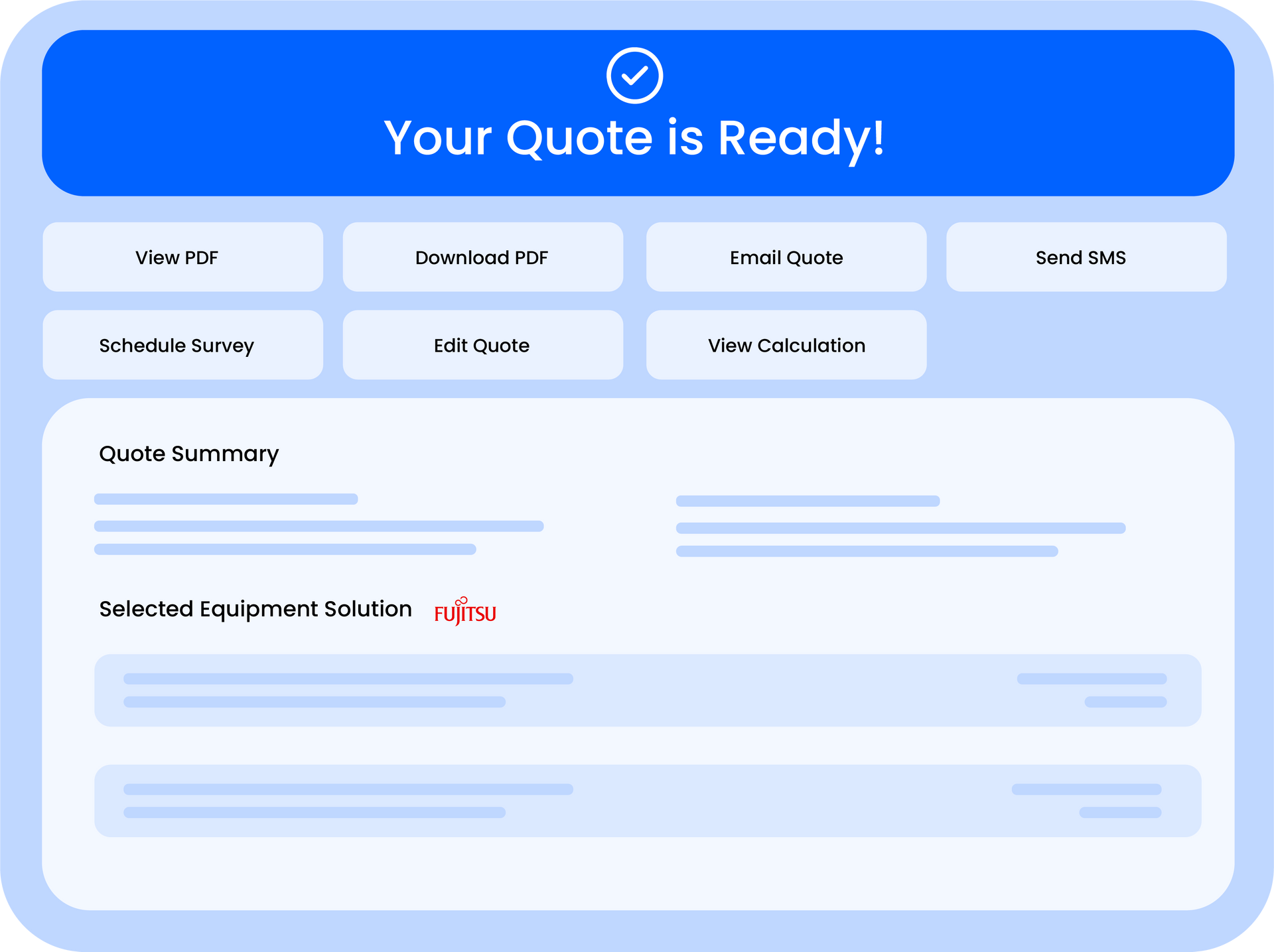
If clicking the Download PDF button doesn't produce a file, try these fixes:
- Check your pop-up blocker - many browsers block new windows or downloads by default. Look for a blocked pop-up notification in your address bar and allow it
- Try a different browser - test in Chrome, Firefox, or Edge to rule out browser-specific issues
- Disable browser extensions - ad blockers and privacy extensions can sometimes interfere with PDF generation
- Clear your browser cache - press Ctrl+Shift+Delete (Windows) or Cmd+Shift+Delete (Mac) to clear cached files, then try again
Note
Chrome is the recommended browser for Quotestack. PDF generation is most reliable in Chrome and Chromium-based browsers.
Logo Not Appearing on PDF
If your company logo is missing from the generated PDF:
- Check your logo is uploaded - go to Settings > Branding and verify a logo is shown in the preview
- Re-upload the logo - sometimes the file upload can fail silently. Delete the existing logo and upload it again
- File format - use PNG or JPG format. SVG files may not render correctly in the PDF
- File size - keep your logo under 2MB. Very large image files can cause the PDF generation to time out
- Image dimensions - logos wider than 400px work best. Very small images may appear pixelated
Warning
If you've just uploaded a new logo, it may take a moment to propagate. Wait 30 seconds and try generating the PDF again.
Colours Look Wrong
PDF rendering can produce slightly different colours compared to what you see on screen. This is normal due to differences between screen (RGB) and print (CMYK) colour spaces. However, if colours are completely wrong:
- Check your brand colours in Settings > Branding - make sure the primary and secondary colours are set correctly
- Use the PDF Preview to verify colours before sending to customers
- Avoid very light colours for text or headers - they may appear washed out in the PDF
Content Cut Off or Overlapping
If text is being cut off at page boundaries or elements are overlapping:
- Reduce the number of Installation Includes items - very long lists can push content onto additional pages
- Shorten Important Notes - long paragraphs of terms and conditions can cause layout overflow
- Check Engineer Notes length - extremely long notes may extend beyond the page boundary
- Reduce line items - quotes with many manual line items may need to flow across pages
Note
Keep Installation Includes and Important Notes concise. Aim for single-line entries rather than multi-sentence paragraphs — they display better on the PDF.
PDF Shows Outdated Information
PDFs are generated using the quote data and branding settings at the time of generation. If a PDF shows old information:
- Re-generate the PDF - open the Quote Summary and click Download PDF again to create a fresh version with current data
- Check if the quote itself has been updated - edits to the quote will only appear in newly generated PDFs
- Branding changes - if you've updated your logo or colours, regenerate the PDF to pick up the new branding
Warning
Previously sent PDFs (via email) cannot be updated. If you've already emailed a quote and need to send a corrected version, generate a new PDF and send it again.
Still Having Issues?
If none of the above resolves your PDF issue, contact support with the quote number, a screenshot of the problem, and the browser you're using. This helps us reproduce and fix the issue quickly.
Did this answer your question?
😃
😐
😞
Great! We’re glad we could help.
Not quite what you needed? Discover more articles here
If you'd like you can ask our team