

Customising Your Branding
Last updated: Feb 2026
Estimated time to complete: 5 min.
Applies to: Air Conditioning Engineers
Summary
Make Quotestack your own. Upload logos, set brand colours, and control how your quotes look to customers.
Your branding is what separates a professional quote from a generic one. Quotestack lets you customise every customer-facing element - from the logo on your PDF quotes to the colours in your email templates and website widget.
Where to Find Brand Settings
Navigate to Settings from the sidebar. The Branding section contains all your visual identity configuration. Changes you make here apply to new quotes, emails, and widget displays going forward.
Company Logo
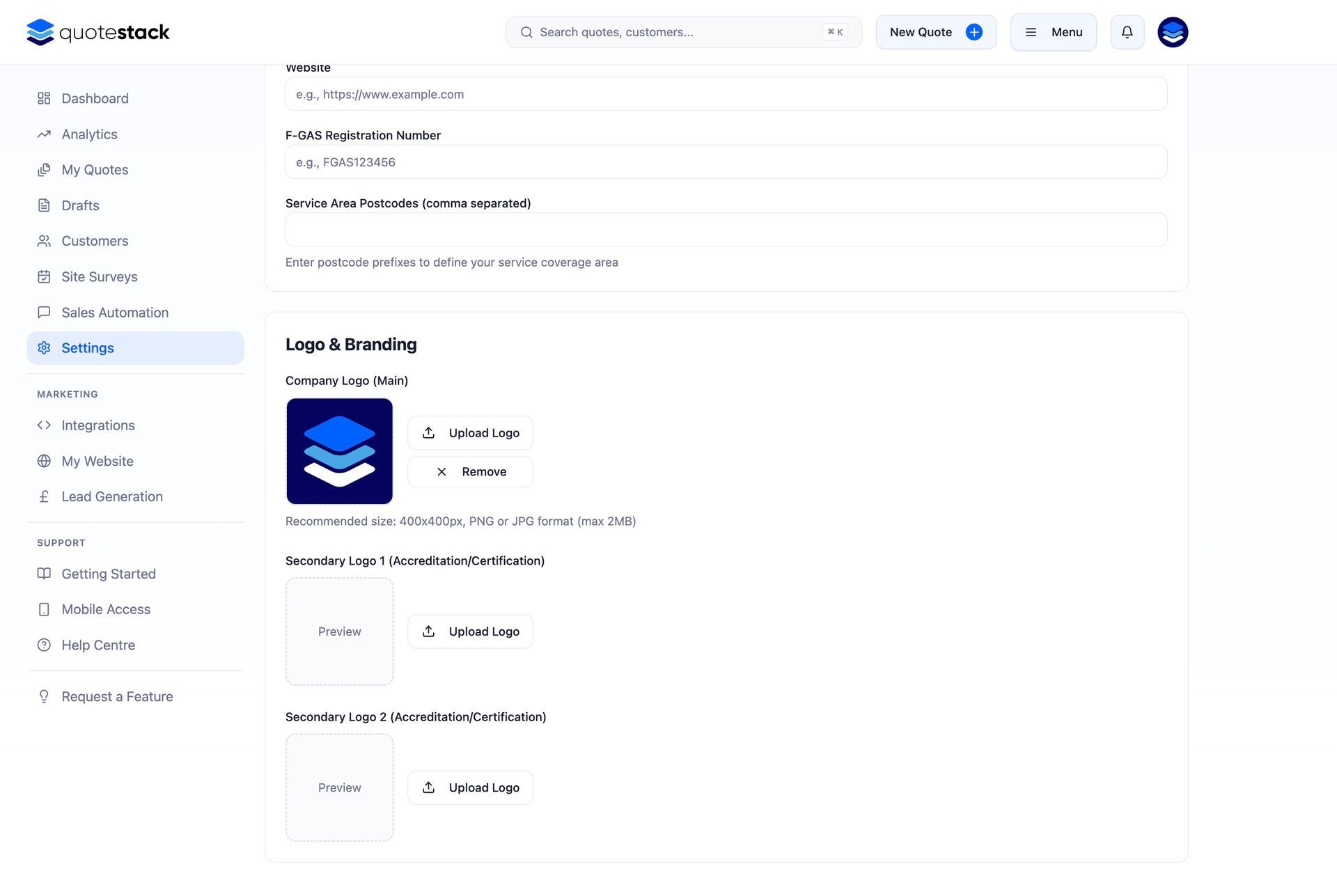
Step 1. Upload Your Primary Logo
Click the logo upload area and select your company logo. This is the main logo that appears at the top of every quote PDF and in email headers. For best results, use a high-resolution PNG or JPG file with a clean background.
- Recommended format - PNG with transparent background, or JPG with white background
- Recommended size - at least 400px wide for sharp rendering on PDFs
- Maximum file size - 2MB
- Supported formats - PNG, JPG, JPEG
Note
A logo with a transparent background works best as it blends naturally with the PDF header regardless of your brand colours.
Secondary Logos
Step 2. Add Accreditation and Partner Logos
You can upload up to two secondary logos that appear in the footer of your quote PDFs. Use these for manufacturer accreditations, industry certifications (e.g. F-Gas, REFCOM), or partner badges that build customer trust.
Secondary logos are optional but recommended. They add credibility and show customers you're properly certified and manufacturer-approved.
Brand Colours
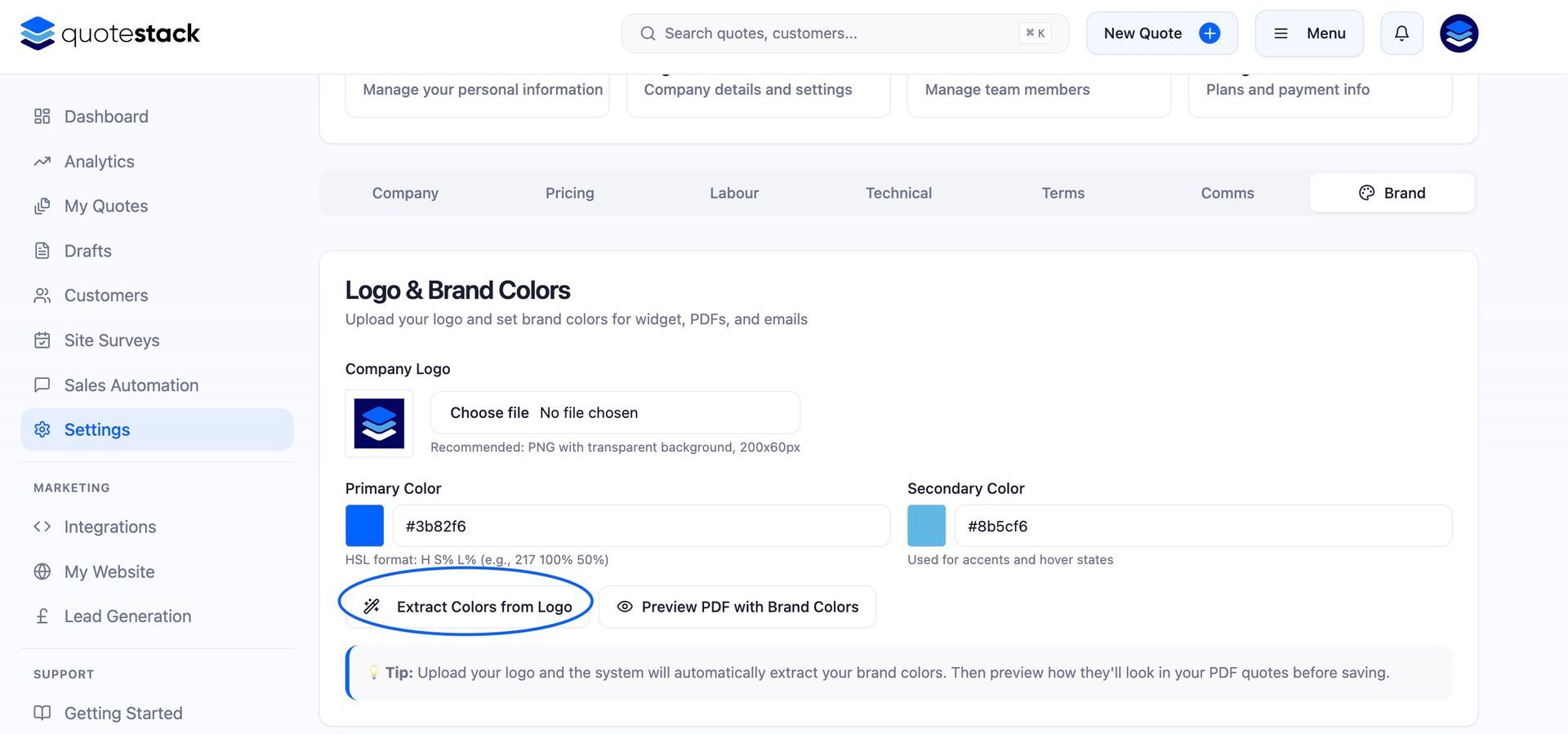
Step 3. Set Your Primary Colour
Choose your primary brand colour using the colour picker or by entering a hex code. This colour is used for PDF headers, section borders, accent elements, and the main theme of your quote documents.
Step 4. Set Your Secondary Colour
Choose a secondary colour that complements your primary. This is used for supporting elements like section dividers, background accents, and secondary headings on your PDFs.
Note
Stick to your existing brand colours for consistency. If you're unsure, use your website's main colours — customers will recognise the branding immediately.
How Branding Appears on PDFs
Your branding configuration directly controls the look of every generated quote PDF:
- Header - your primary logo displayed prominently at the top
- Company details - name, address, phone, email, and website below the header
- Colour scheme - primary colour applied to headings, borders, and accent bars
- Section styling - secondary colour used for dividers and background shading
- Footer - secondary logos, F-Gas number, and company registration details
PDF Preview
Step 5. Preview Your Branded PDF
Use the PDF Preview feature in the Branding section to generate a sample quote with your current settings. This shows exactly how your logo, colours, and layout will appear on a real quote - check it before sending anything to customers.
Warning
PDF colours may appear slightly different from screen colours due to rendering differences. Always use the PDF Preview to verify the final look rather than relying on the colour picker alone.
Branding on Emails
Your branding also extends to customer-facing emails. Quote delivery emails and follow-up sequences use your company name, logo, and primary colour to create a consistent branded experience across all customer touchpoints.
Updating Your Branding
If you use the embedded quote request widget on your website, it picks up your primary colour and company name to match your site's look and feel. You can further customise the widget's appearance in Widget Settings. You can update your branding at any time. A few things to keep in mind:
- Changes apply to new quotes only - previously generated PDFs retain the branding from when they were created
- To update an existing quote's branding, open the quote and regenerate the PDF
- Email templates update immediately - the next email sent will use the new branding
- Widget changes take effect within a few minutes on your website
Note
If you're rebranding your business, update your logo and colours here first, then regenerate any active quotes you plan to re-send to customers.
Did this answer your question?
😃
😐
😞
Great! We’re glad we could help.
Not quite what you needed? Discover more articles here
If you'd like you can ask our team