

How Quotes Work in Quotestack
Last updated: Feb 2026
Estimated time to complete: 5 min.
Applies to: Air Conditioning Engineers
Summary
Understand the full quote lifecycle - from draft to sold - and how the pipeline keeps everything organised.
Every quote in Quotestack follows a clear lifecycle. Understanding how quotes move through each stage helps you stay on top of your pipeline, follow up at the right time, and close more deals.
The Quote Lifecycle
A quote progresses through a series of statuses from creation to completion. Here's how each stage works:
1. Draft
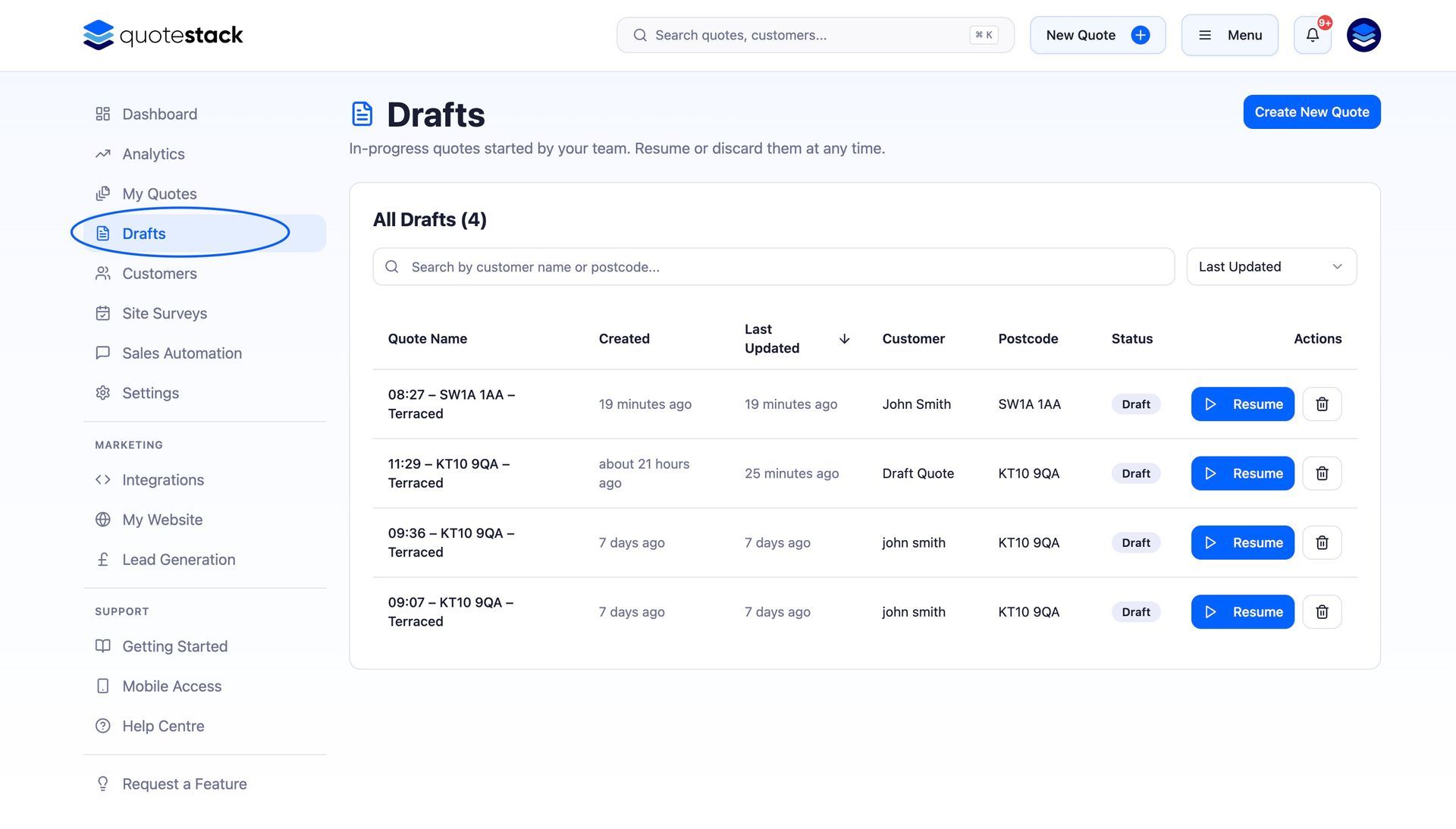
When you start building a quote but haven't finished it yet, it's saved as a Draft. Drafts appear in the Drafts page and can be edited at any time. They don't count toward your pipeline metrics until they're submitted.
2. Quoted
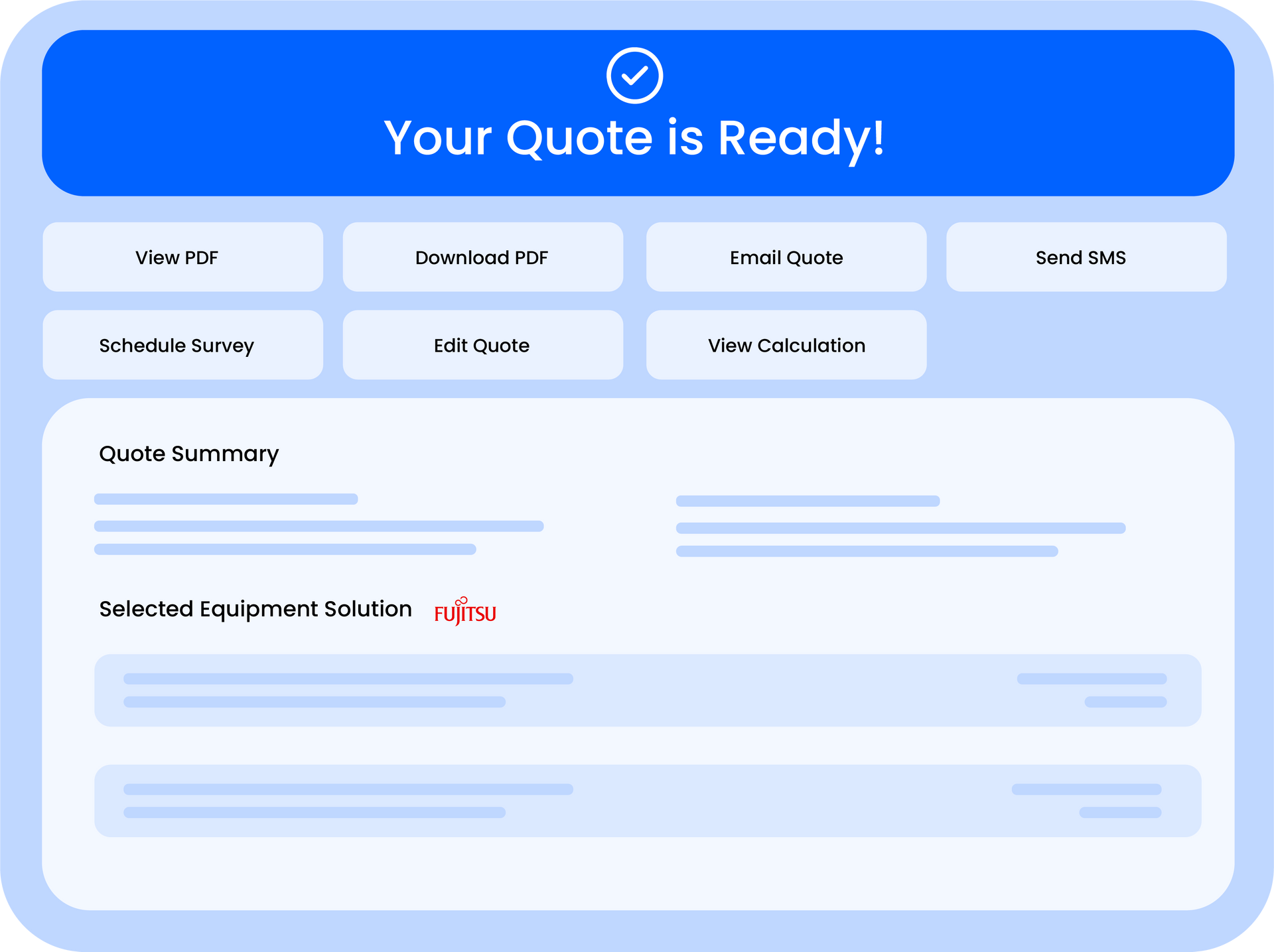
Once you complete all the required fields and submit the quote, its status changes to Quoted. This means the quote is finalised and ready to be sent to the customer. You can still edit the quote at this stage if needed.
3. Sent
When you email the quote to the customer - either via the built-in email feature or by sharing the PDF - the status moves to sent. This is tracked automatically when you use the platform's email tools.
4. Viewed
If the customer opens the quote email or clicks the quote link, the status updates to Viewed. This gives you visibility into customer engagement without needing to chase them to ask if they've seen it
5. Follow Up
Quotes that haven't progressed after a set period can be moved to Follow Up, either manually or via automated follow-up sequences. This flags them for attention so nothing falls through the cracks.
Note
The Viewed status is tracked automatically via email open tracking and link clicks — no action needed from you.
6. Survey Booked
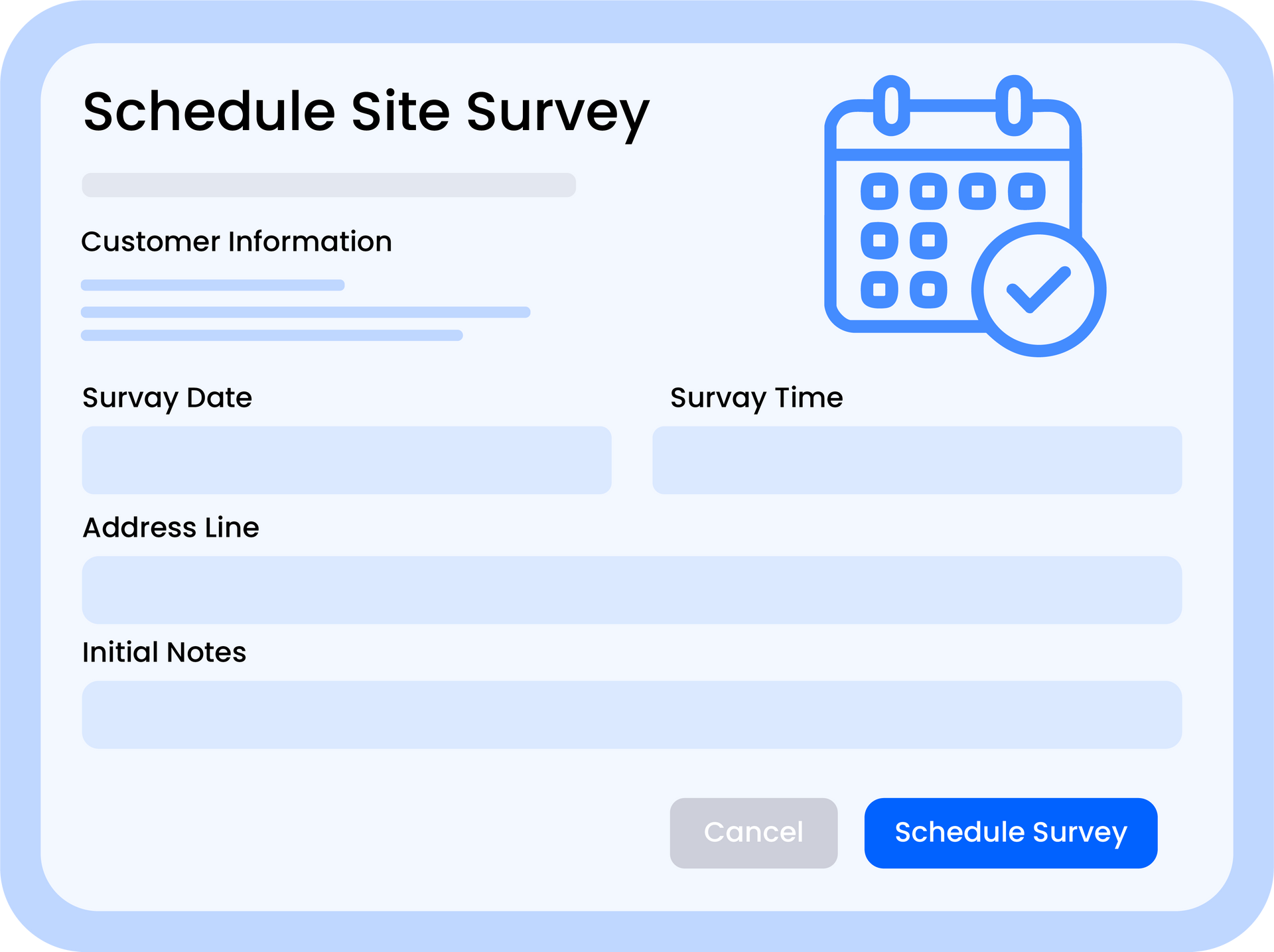
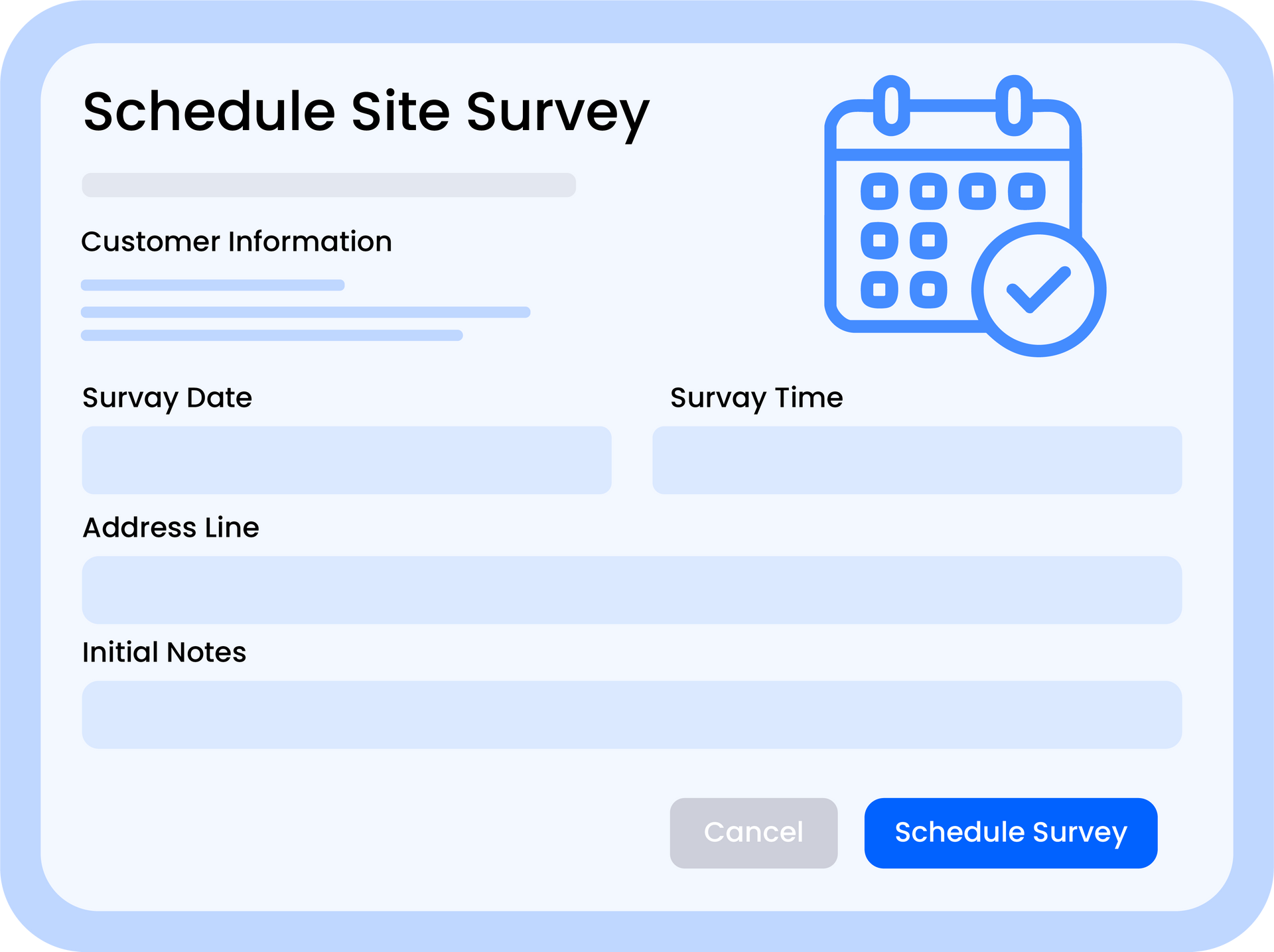
If a site survey is required before the customer commits, you can schedule one directly from the quote.
The status updates to Survey Booked, keeping your pipeline accurate.
7. Accepted/Sold
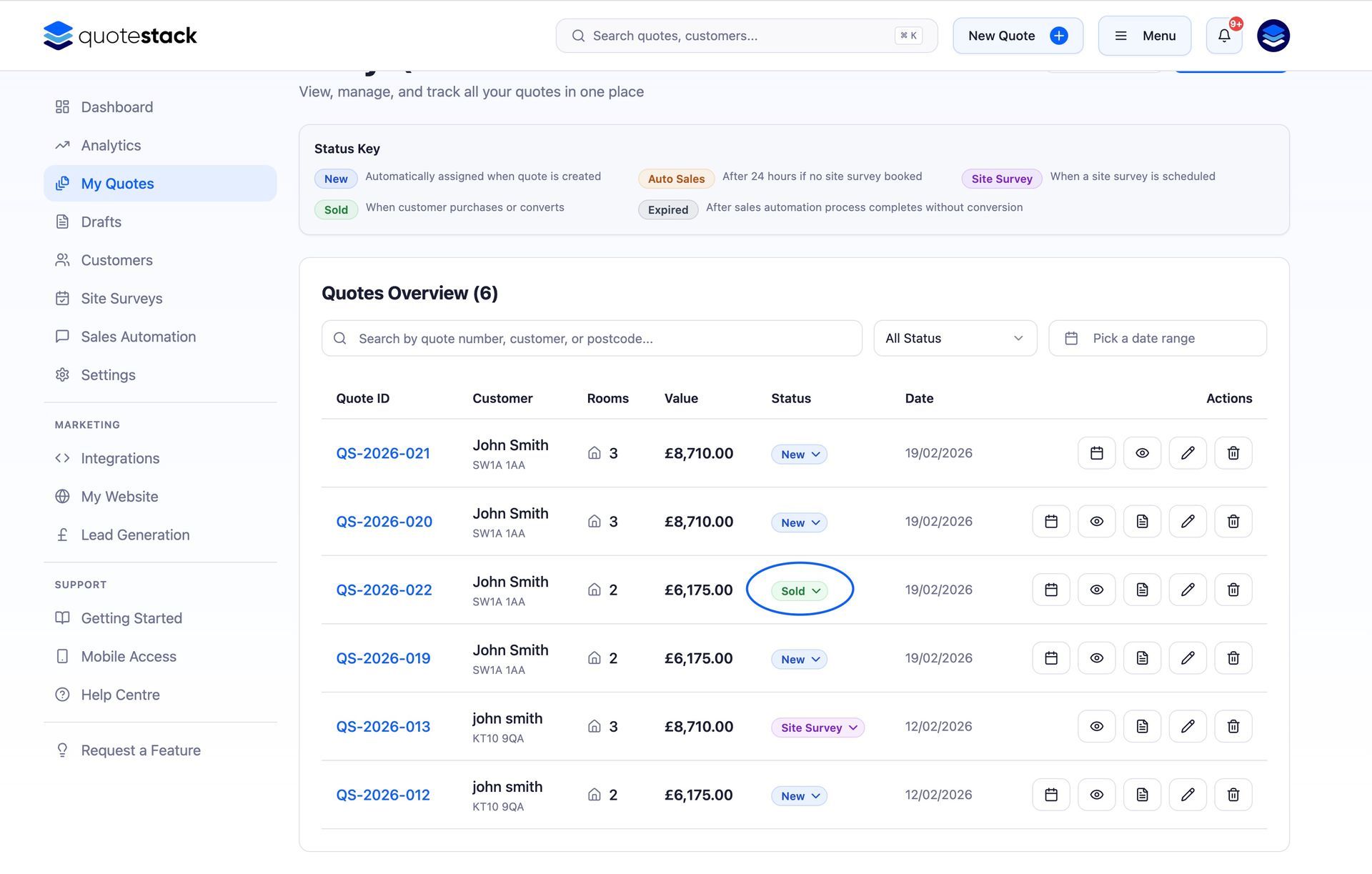
When the customer confirms they want to go ahead, move the quote to Accepted. In the pipeline view, the Sold stage shows the total sales value so you can track revenue at a glance.
8. Rejected/ Expired
If a customer declines, mark the quote as Rejected. Quotes that go unanswered beyond the expiry period can be marked as Expired. Both statuses help keep your pipeline clean and your metrics accurate.
The Pipeline View
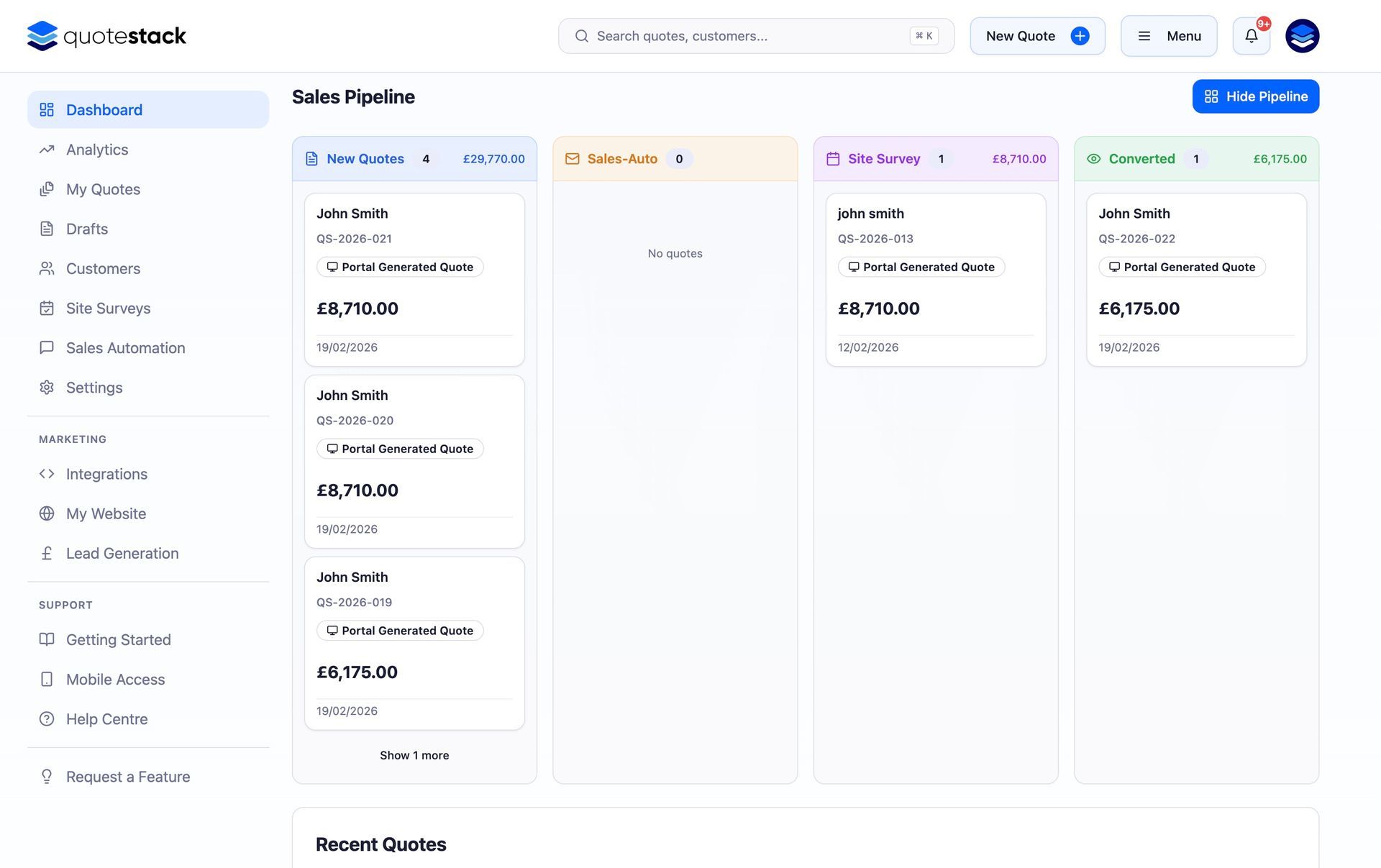
The Dashboard pipeline gives you a visual overview of all your active quotes, organised by status. Each stage shows the number of quotes and their combined value, so you can see exactly where your revenue stands.
- Drag and drop - move quotes between stages by updating their status
- Stage totals - each column displays the count and total value of quotes in that stage
- Sold value - the final stage shows total sales revenue as a currency badge instead of a conversion percentage
- Click to open - click any quote card to jump to the full Quote Summary
Changing a Quote's Status
You can change a quote's status in several ways:
- From the Quote Summary page - use the status dropdown at the top of the page
- From the All Quotes table - click the status badge on any row to change it
- Automatically - some status changes happen automatically (e.g. Sent when you email a quote, Viewed when the customer opens it)
Warning
Changing a quote's status to Rejected or Expired is not reversible from the pipeline view. If you need to reactivate a quote, open it from the All Quotes page and update the status manually.
Automated Follow-Ups
Quotestack can automatically send follow-up emails based on where a quote sits in the lifecycle. For example, you can set up a reminder email 3 days after a quote is sent if the customer hasn't viewed it, or a second follow-up a week later. Configure your follow-up sequences in Settings under Automation.
Note
Automated follow-ups only trigger for quotes in the Sent or Viewed stages — they won't fire for Drafts, Accepted, or Rejected quotes.
Understanding the quote lifecycle helps you manage your workload effectively. Use the pipeline to prioritise follow-ups, track conversion rates, and ensure no quote gets forgotten.
Did this answer your question?
😃
😐
😞
Great! We’re glad we could help.
Not quite what you needed? Discover more articles here
If you'd like you can ask our team