

Customising Quote Templates
Last updated: 8 Feb 2026
Estimated time to complete: 5 min.
Applies to: Air Conditioning Engineers
Summary
Control how your quote PDFs look from logos and colours to custom notes, installation includes, and important terms.
Every quote PDF you generate is built from your company settings and branding configuration. By customising these, you control exactly what your customers see from the header design to the fine print at the bottom.
Branding Your Quotes
Your quote PDF automatically pulls in your branding from the Settings page. The key elements you can customise are:
- Company logo - displayed prominently at the top of the PDF
- Primary colour - used for headers, borders, and accent elements throughout the document
- Secondary colour - used for supporting design elements and section dividers
- Secondary logos - accreditation badges or manufacturer logos shown in the footer
- Company details - name, address, phone, email, website, and F-Gas number
Note
Use the PDF Preview in Settings > Branding to see exactly how your quote will look before sending it to a customer.
Step-by-Step Guide
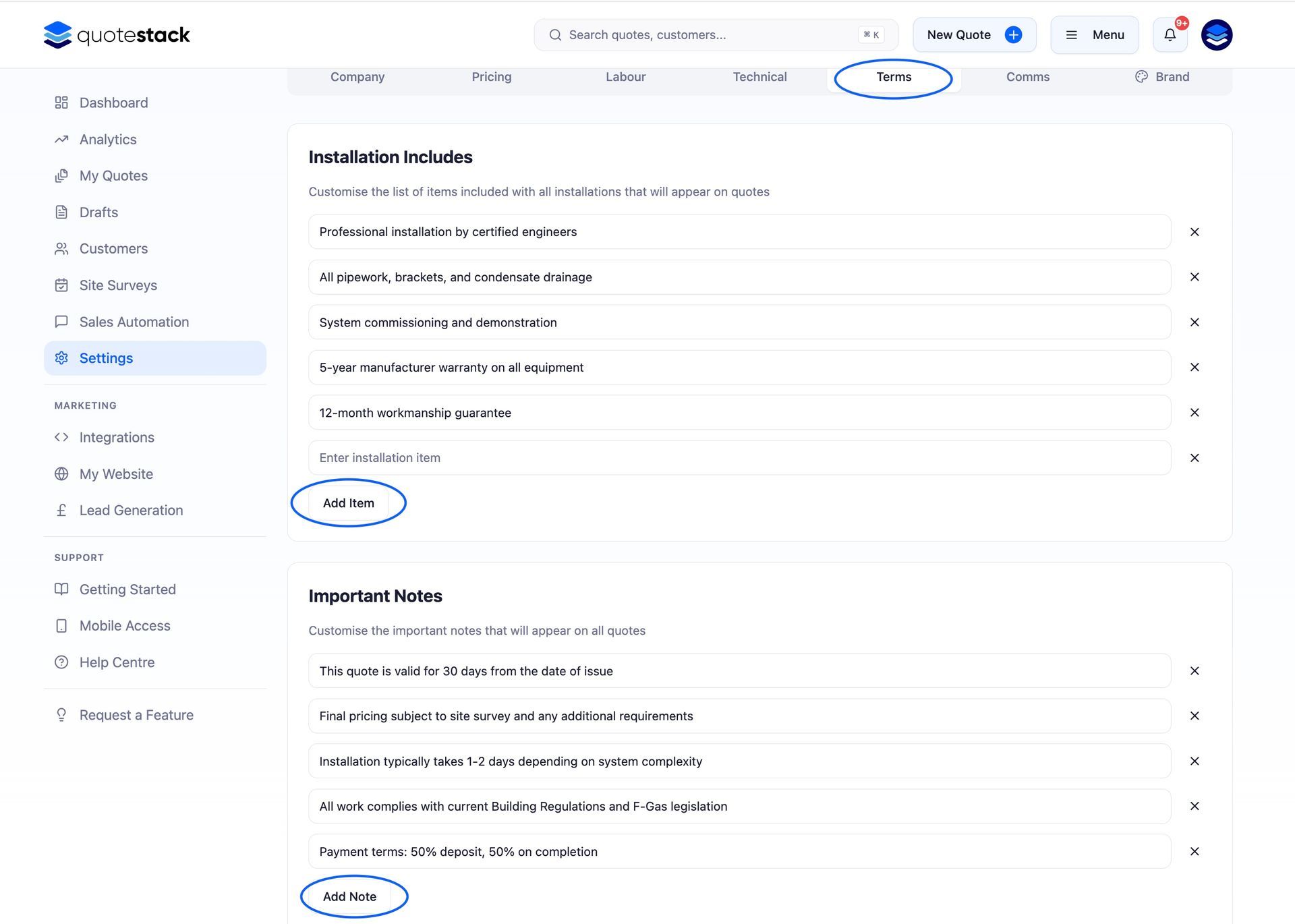
You can define a list of items that are included with every installation. These appear as a bulleted list on the quote PDF under an "Installation Includes" heading. Common examples:
- Supply and installation of all equipment listed
- Up to 3 metres of pipework per indoor unit
- Electrical connection to existing spur or socket
- Commissioning and testing of the system
- Disposal of packaging materials
- 1-year workmanship warranty
Step 1. Edit Installation Includes
Go to Settings and find the Installation Includes section. Add, edit, or remove items from the list. Each item appears as a bullet point on the quote PDF. Keep descriptions concise and customer-friendly.
Important Notes and Terms
The Important Notes section lets you add terms, conditions, or disclaimers that appear at the bottom of every quote PDF. Use this for payment terms, warranty conditions, regulatory notices, or any caveats the customer should be aware of.
Step 2. Add Important notes
Navigate to Settings and find the Important Notes section. Add each note as a separate entry. Notes appear in order at the bottom of the PDF, clearly separated from the pricing breakdown.
Warning
Important Notes appear on every quote. Make sure the content is relevant to all customers — for quote-specific notes, use the Engineer Notes field on individual quotes instead.
Engineer Notes
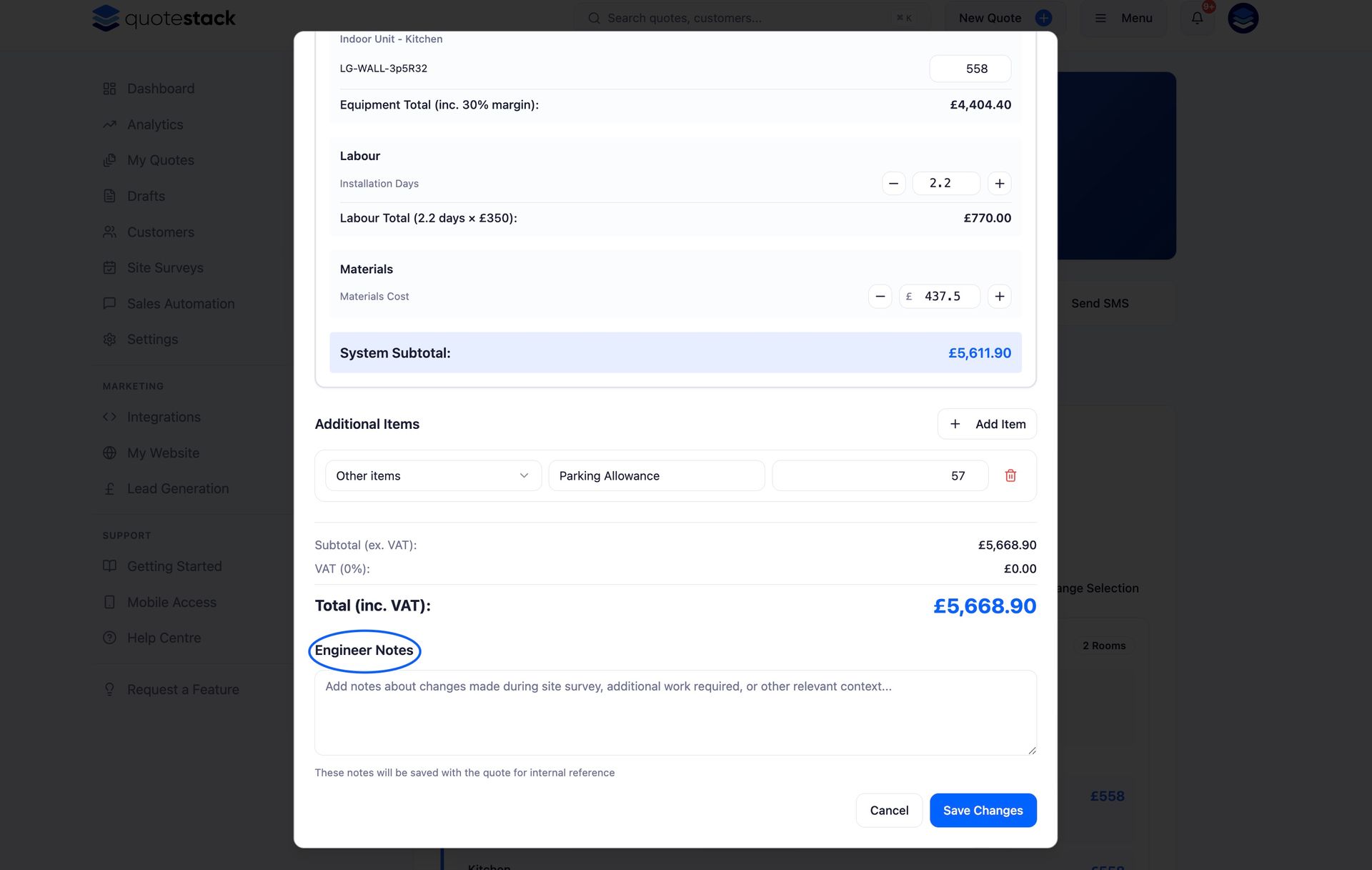
Unlike Important Notes (which appear on every quote), Engineer Notes are specific to a single quote. Use them to add site-specific details, special instructions, or observations from a site survey. Engineer Notes appear on the quote PDF below the main pricing section.
Note
Engineer Notes are a great place to document things like access requirements, parking arrangements, or any non-standard work discussed with the customer.
Cost Breakdown Display
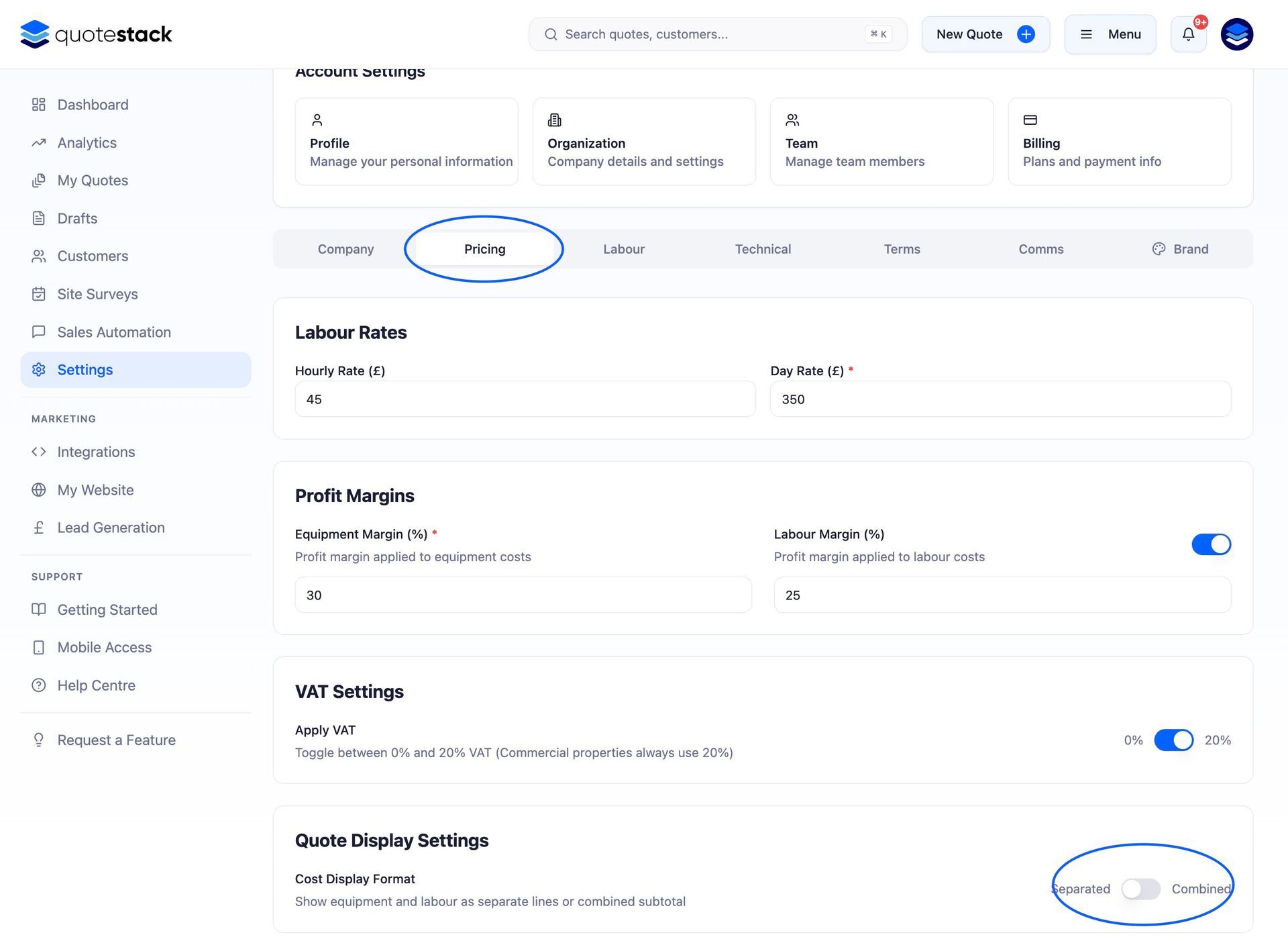
Your pricing settings determine how costs are displayed on the PDF. You have options to control this:
- Combine costs - show a single total price rather than itemised equipment and labour costs
- Equipment margin - add a markup to trade prices before displaying on the quote
- Installation margin- apply a margin to labour costs
- VAT rate - set your VAT percentage (displayed as a separate line on the PDF)
Note
If you prefer customers to see a single "all-in" price rather than a detailed breakdown, enable the Combine Costs option in your pricing settings.
Previewing Your Templates
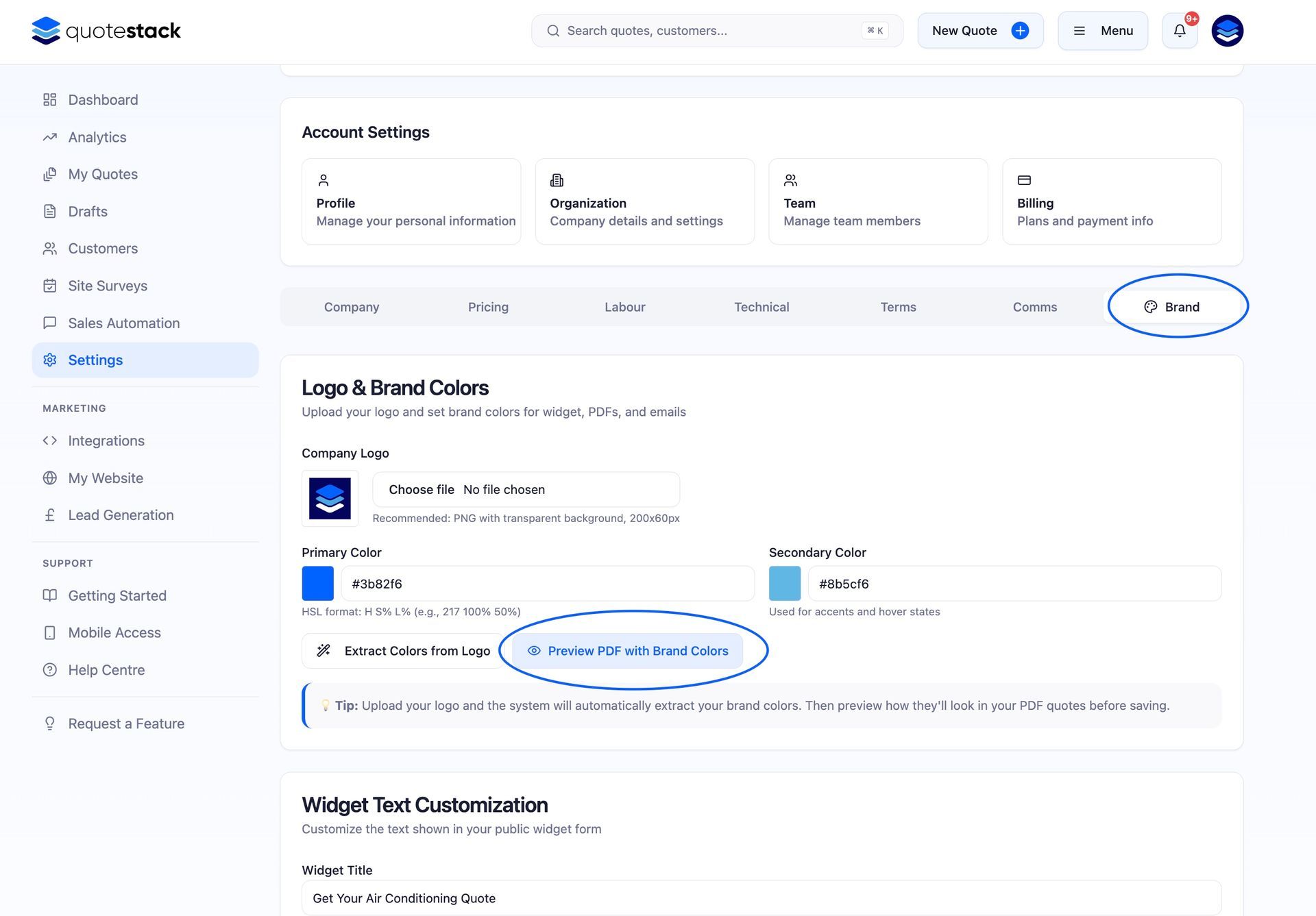
Before sending quotes to customers, use the PDF Preview feature in Settings > Branding. This generates a sample PDF using your current branding, colours, logos, and template settings so you can check everything looks professional.
Any changes to your template settings apply to all new quotes going forward. Previously generated PDFs retain the branding and settings that were active at the time they were created.
Did this answer your question?
😃
😐
😞
Great! We’re glad we could help.
Not quite what you needed? Discover more articles here
If you'd like you can ask our team