

Adding Line Items to Quotes
Last updated: Feb 2026
Estimated time to complete: 4 min.
Applies to: Air Conditioning Engineers
Summary
Learn how to add manual line items, apply adjustments, and set discounts to customise your quotes beyond the auto-generated equipment selection.
Quotestack automatically generates equipment selections and pricing based on room requirements and your settings. But sometimes you need to add extra charges, make manual adjustments, or apply a discount. This guide covers all the ways you can fine-tune a quote's line items.
Auto Generated Line Items
When you create a quote, the system automatically generates line items for indoor units, outdoor units, labour, materials, and any additional costs configured in your pricing settings (such as electrician fees, parking, or consumables). These appear in the quote breakdown and on the PDF.
Note
Auto-generated line items are based on your Pricing Settings. If your default costs change, only new quotes will reflect the updated values — existing quotes keep their original figures.
Adding Manual Line Items
You can add custom line items to any quote to cover work or charges that fall outside the standard calculation. Common examples include:
- Additional pipework runs for complex installations
- Scaffolding or access equipment hire
- Electrical upgrades or consumer unit work
- Making good (plastering, decorating) after installation
- Extended warranty packages
- Disposal of old equipment
Step-by-Step Guide
Step 1. Open the Quote
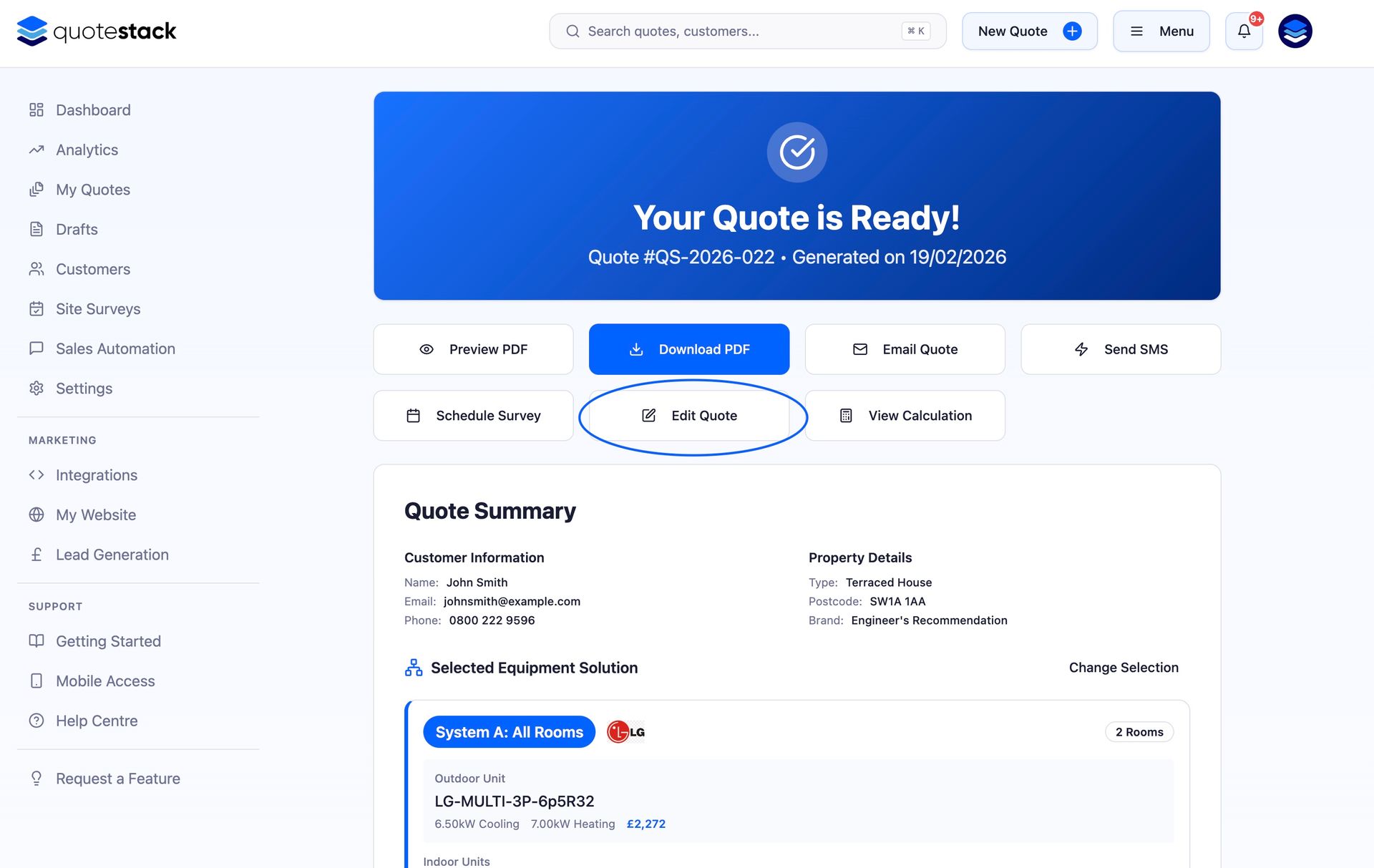
Navigate to the quote you want to edit - either from the All Quotes page or by clicking a quote card on the Dashboard pipeline.
Step 2. Edit the Quote
Click the Edit button to open the quote editor. Scroll to the line items section where you'll see the auto-generated breakdown.
Step 3. Add a Line Item
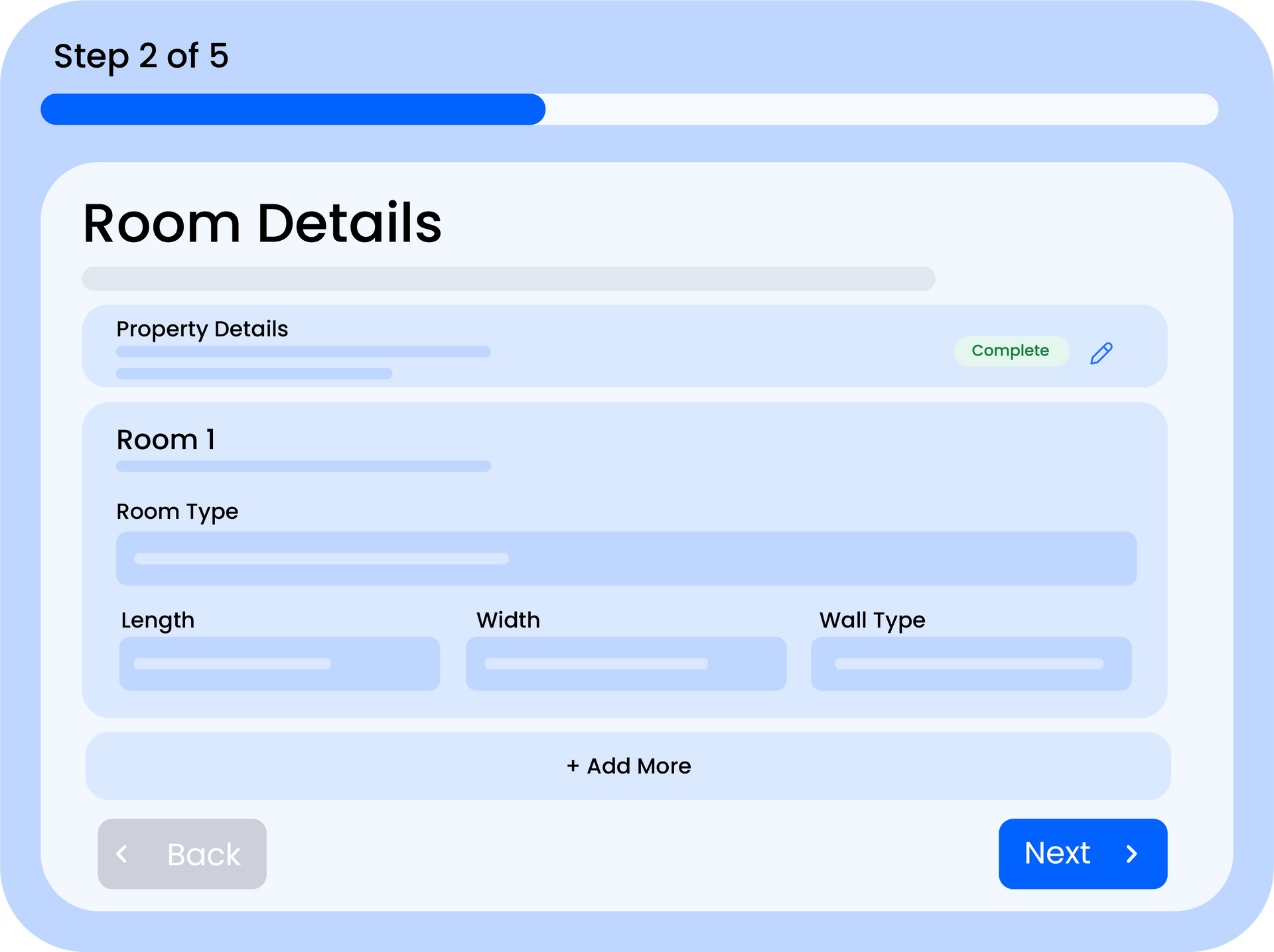
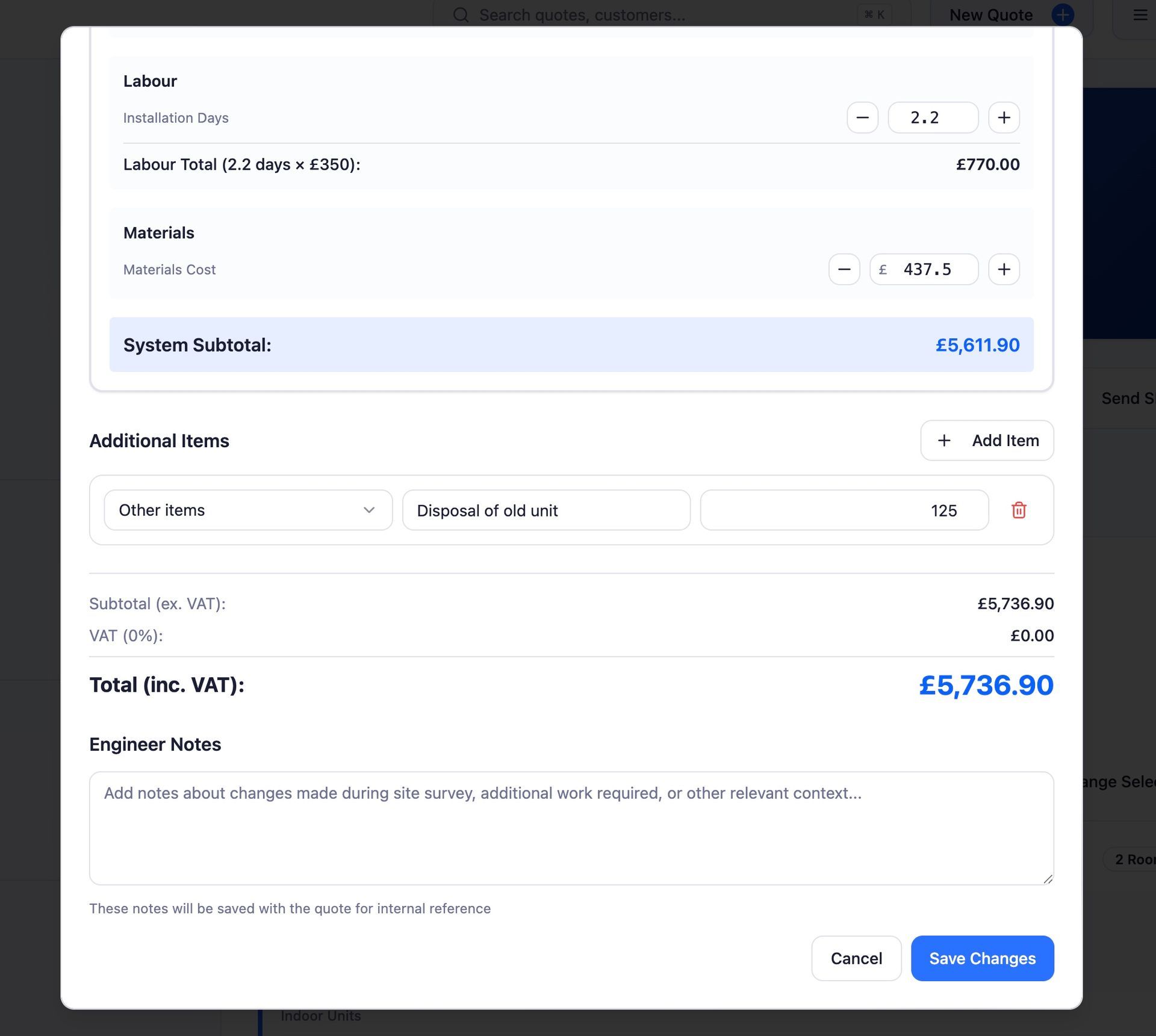
Click "Add Line Item" to insert a new row. Enter a description for the item and set the value. The quote total updates automatically to include the new line item.
Note
Use clear, customer-friendly descriptions for manual line items — they appear on the quote PDF exactly as you type them.
Manual Adjustments
If you need to adjust the overall pricing without adding specific line items, you can use manual adjustments. These let you increase or decrease the quote total by a fixed amount. Adjustments appear as a separate line in the cost breakdown so the customer can see exactly what's been changed.
Warning
If you need to adjust the overall pricing without adding specific line items, you can use manual adjustments. These let you increase or decrease the quote total by a fixed amount. Adjustments appear as a separate line in the cost breakdown so the customer can see exactly what's been changed.
Applying Discounts
You can apply an overall percentage discount to a quote. The discount is calculated on the subtotal (before VAT) and is displayed as a separate line on the quote PDF so the customer can see the saving.
Step 4. Add a Line Item
In the quote editor, find the Discount field and enter a percentage value. The discount is applied to the subtotal and the new total (including VAT) updates instantly.
Note
Discounts are a great way to incentivise quick decisions. Even a small 5% discount can help convert a hesitant customer.
How Line Items Appear on the PDF
All line items - auto-generated, manual, adjustments, and discounts appear in a clear cost breakdown table on the quote PDF. The table shows each item description and value, followed by the subtotal, any discount, VAT, and the final total. This gives your customer full transparency over the pricing.
- Equipment costs - indoor and outdoor units with model details
- Labour - calculated from your day rate and estimated installation time
- Materials - pipework, brackets, consumables, and other material costs
- Additional charges - electrician fees, parking, and any manual line items you've added
- Discount - shown as a percentage reduction on the subtotal
- VAT - calculated at your configured rate
- Total - the final price the customer pays
By combining auto-generated pricing with manual line items and discounts, you can create accurate, transparent quotes that cover every aspect of the job.
Did this answer your question?
😃
😐
😞
Great! We’re glad we could help.
Not quite what you needed? Discover more articles here
If you'd like you can ask our team