

Help Article Title
Last updated: 8 Feb 2026
Estimated time to complete: 5 min.
Applies to: HVAC Engineers
Summary
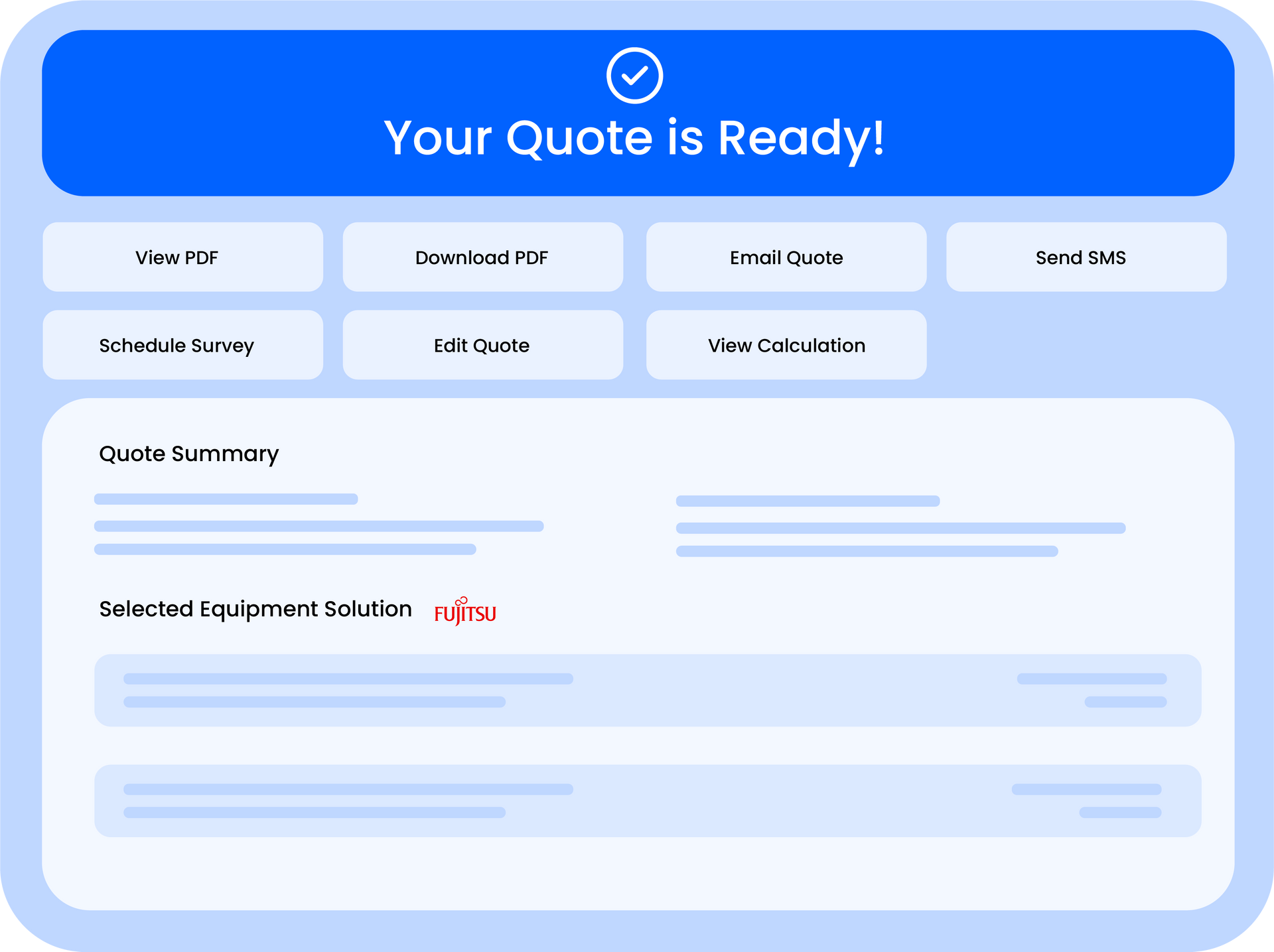
This article helps you understand how to create and manage HVAC quotes using the software.
It walks you through entering project details, selecting equipment and services, adjusting pricing, and generating a professional quote you can share with customers.
What you’ll learn
- How to enter job and customer details to create an HVAC quote
- How to select systems, services, and options for accurate pricing
- How to generate, review, and share a professional quote with customers
Note
For system compatibility, only site configuration files (e.g.,
.txt
,
.xml
) can be uploaded.
Warning
- Assistance with the content of HVAC custom files is outside our support scope. For help creating or editing these files, we recommend consulting a Quotestack Expert.
- Please note that the Quotestack platform does not validate custom files. Even if a file is corrupted, it will still be served.
Error
For system compatibility, only site configuration files (e.g.,
.txt
,
.xml
) can be uploaded.
Step-by-step guide
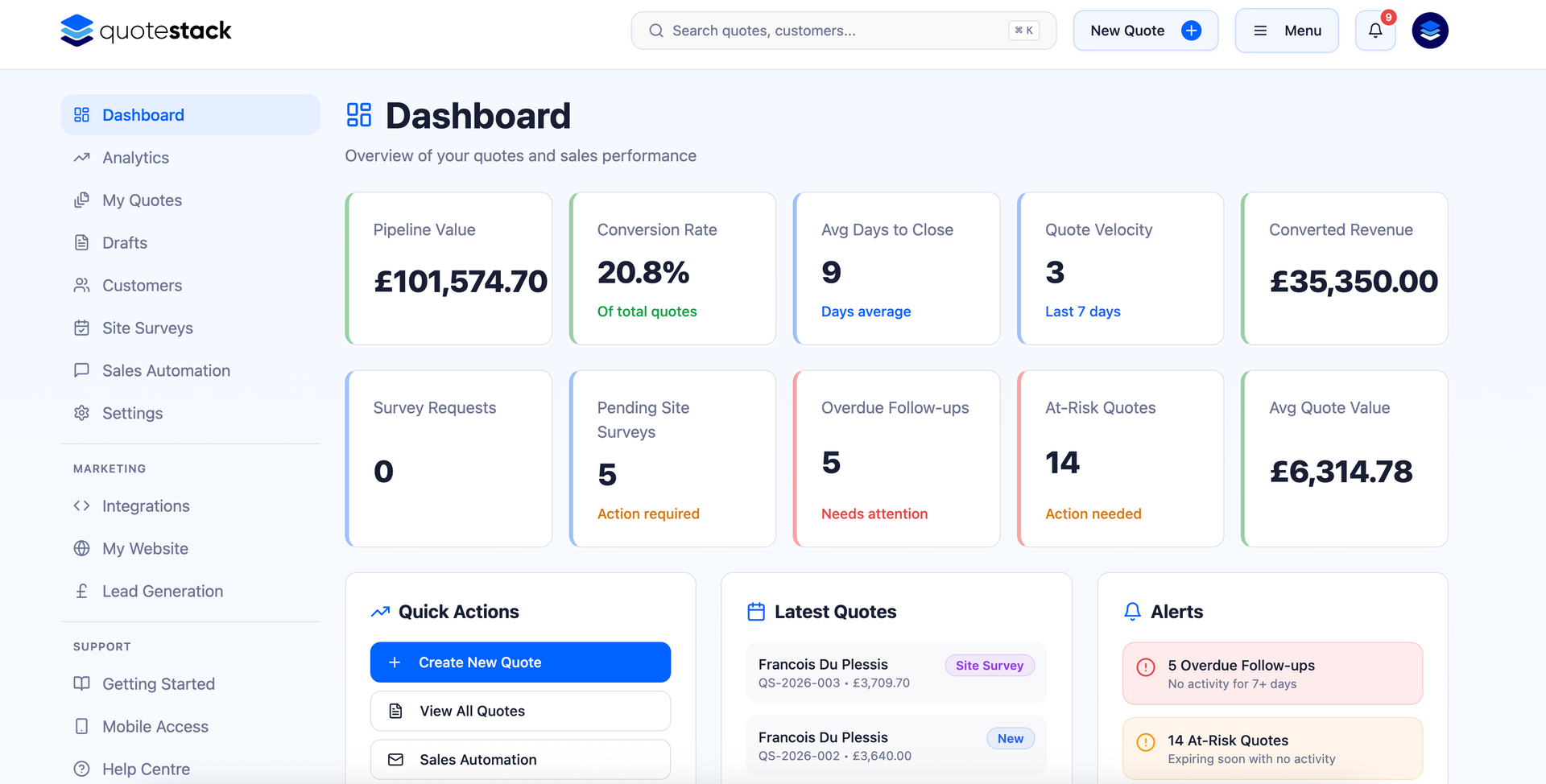
Step 1. Start a new quote
Insert screenshot here — highlight the New Quote button
Expected result:
A blank quote form opens where you can begin entering job details.
Step 2. Enter customer and job details
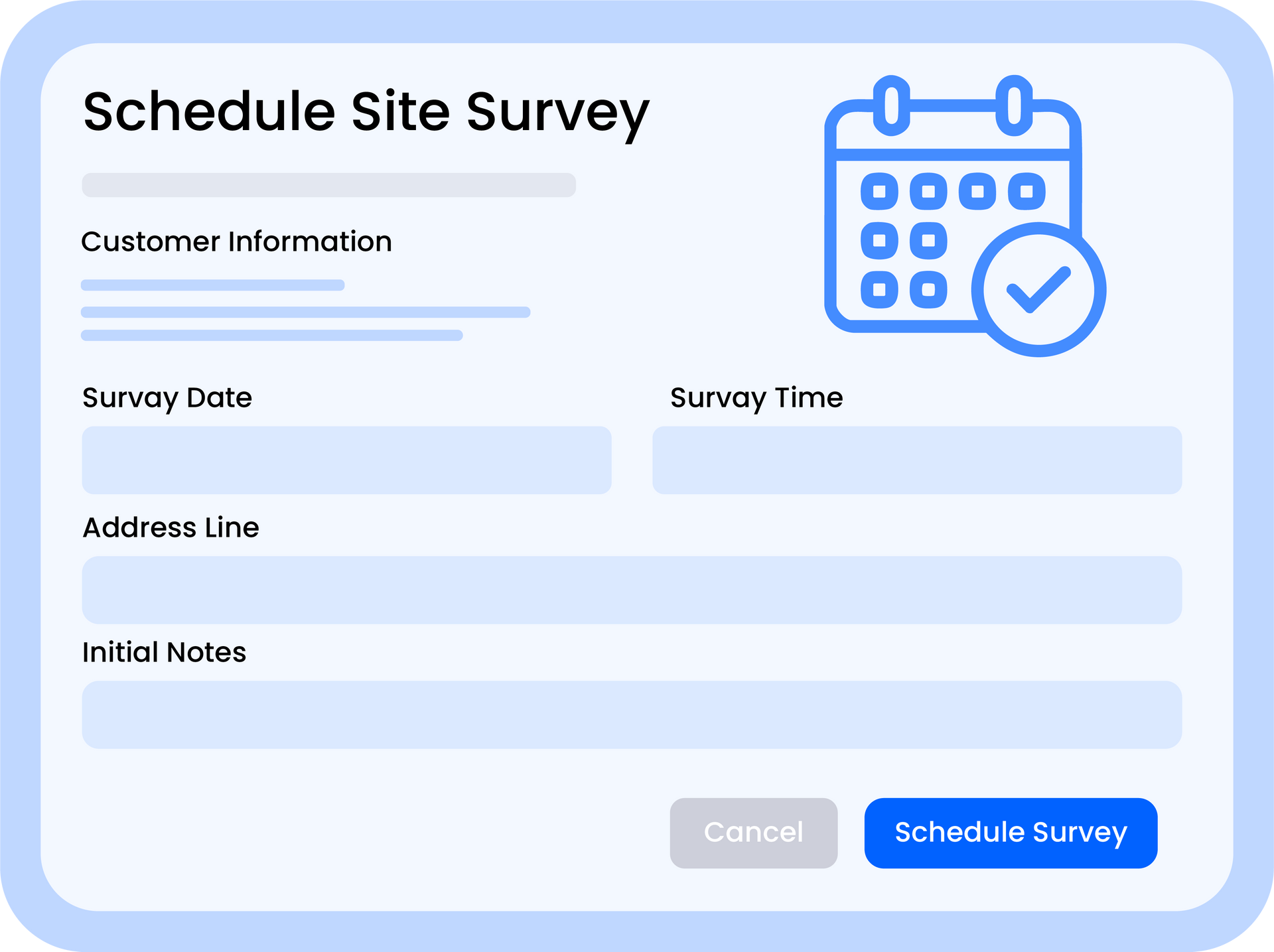
Action: Fill in the customer information and job location fields
Insert screenshot here — highlight the New Quote button
Expected result:
A blank quote form opens where you can begin entering job details.
Step 3. Add systems and pricing
Action: Fill in the customer information and job location fields
Insert screenshot here — highlight the New Quote button
Expected result:
A blank quote form opens where you can begin entering job details.
Important notes (callouts)
Make sure all customer and job details are accurate before adding systems and pricing. Any errors here can affect the quote total and may require manual corrections later. Always double-check addresses, contact info, and job specifications to avoid delays.
Remember that pricing and system selections can be adjusted at any time before finalizing the quote. Changes are saved automatically, but it’s a good idea to review the full quote summary before sending it to the customer to ensure everything looks correct.
Did this answer your question?
😃
😐
😞
Great! We’re glad we could help.
Not quite what you needed? Discover more articles here
If you'd like you can ask our team